
Free purchase order generator
Tell your supplier exactly what you want to order. Add the products, quantities, agreed prices and delivery requirements, then download your purchase order PDF.
- No sign-up required
- Automatic calculations
- Download PDF
Your details are sent securely to our PDF service only when you preview or download. This tool does not save documents to an account.
How to create a purchase order
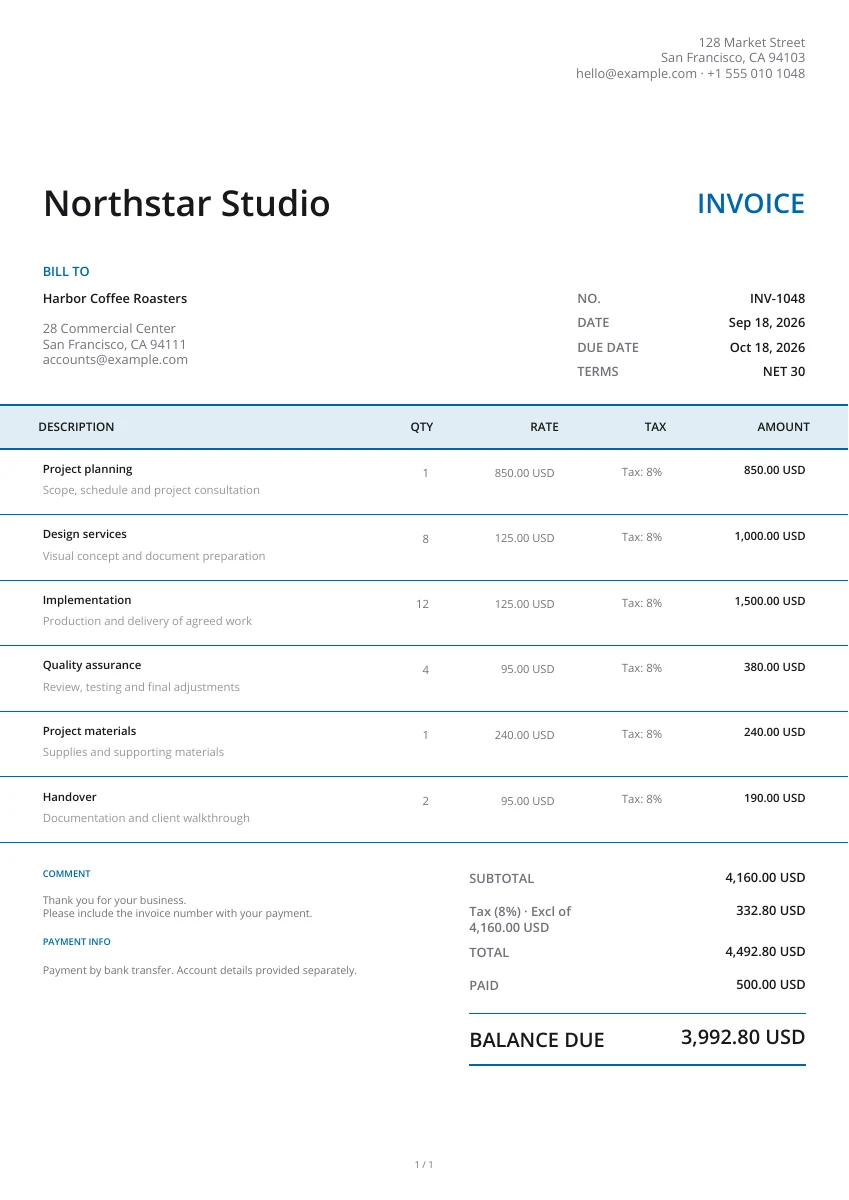
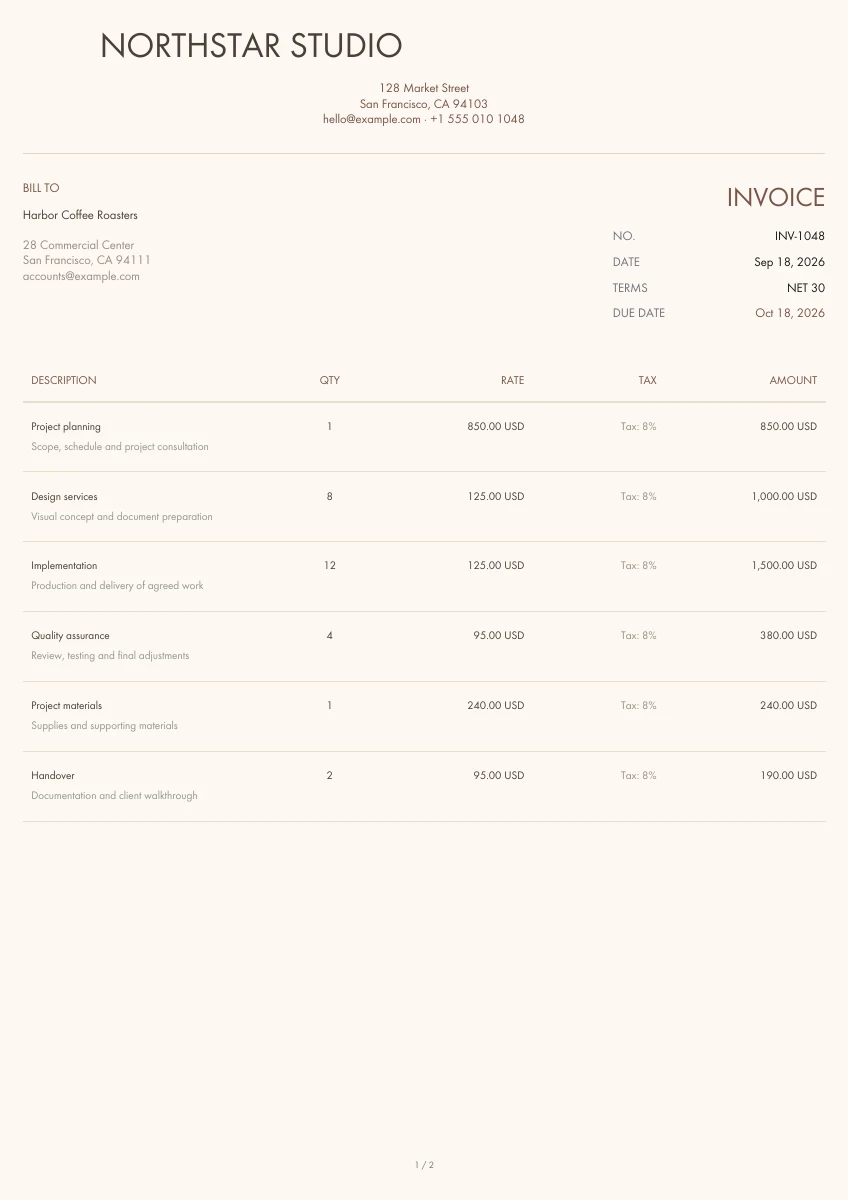
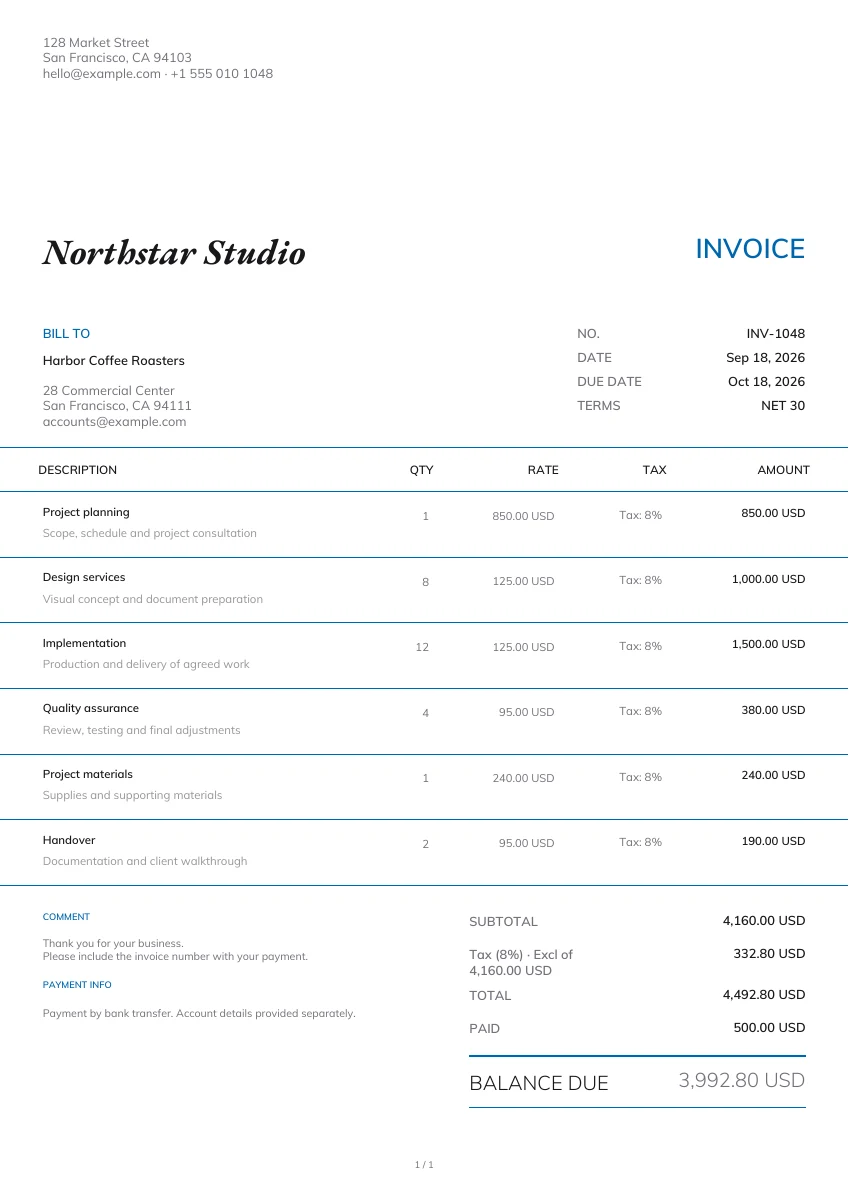
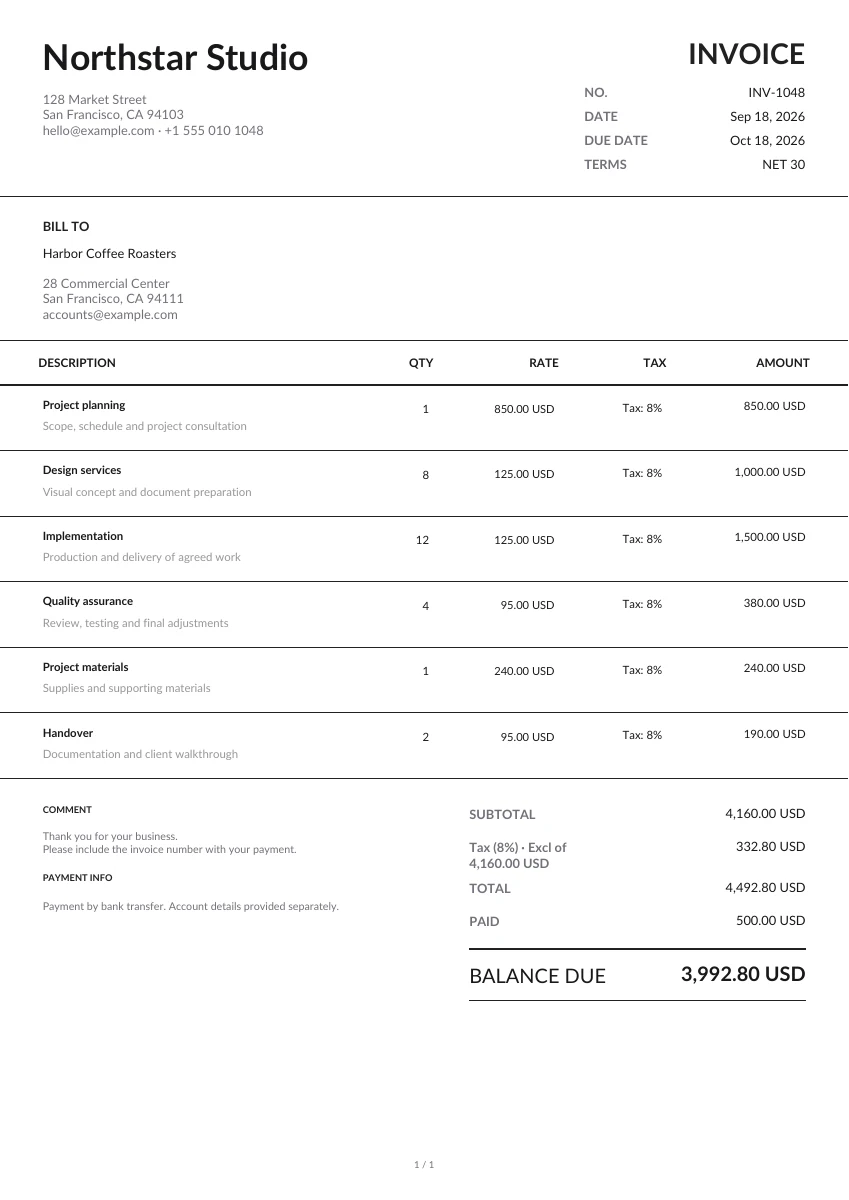
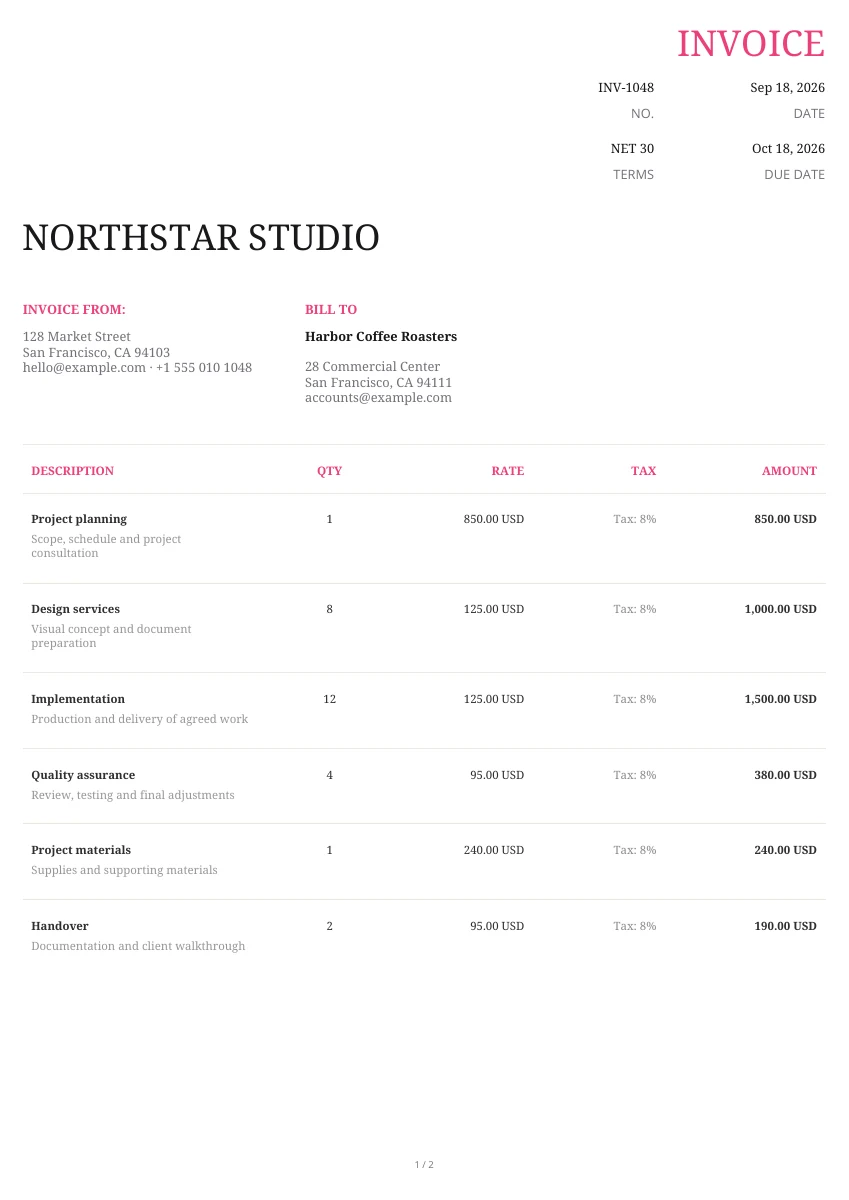
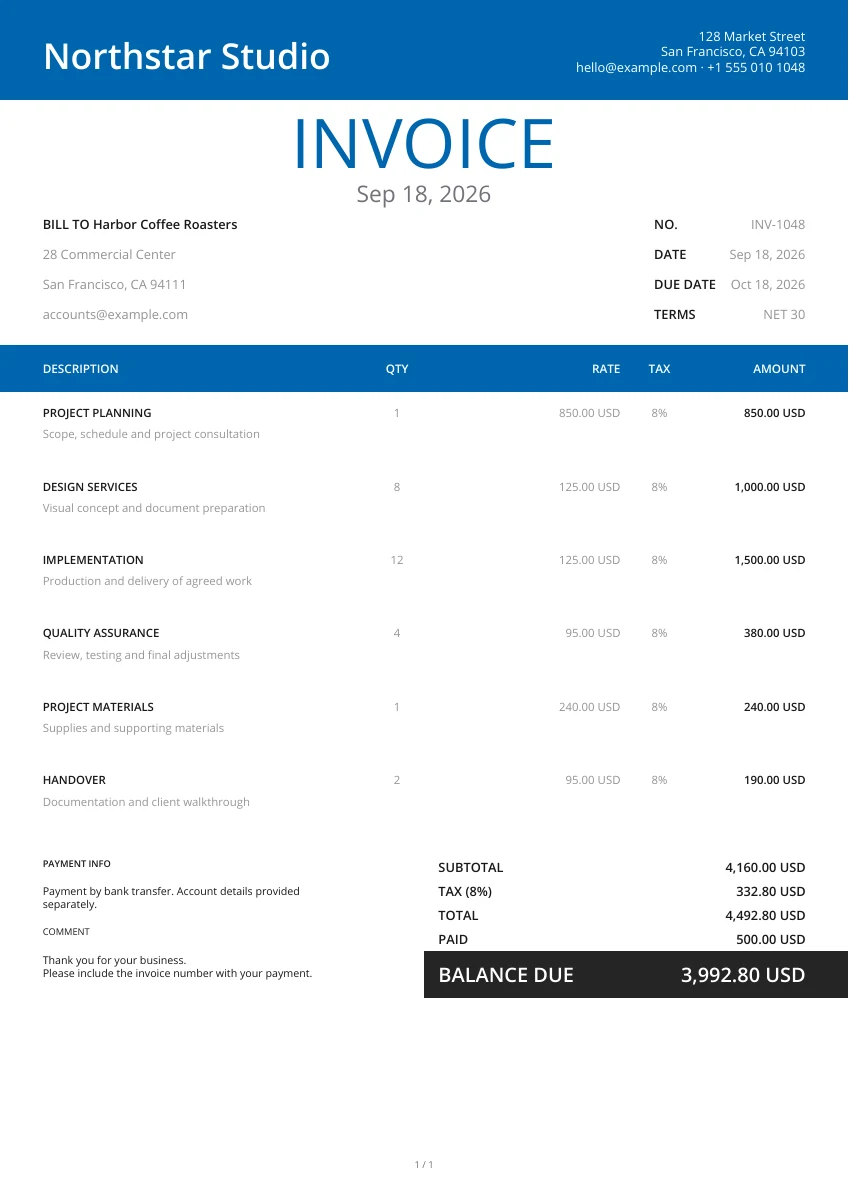
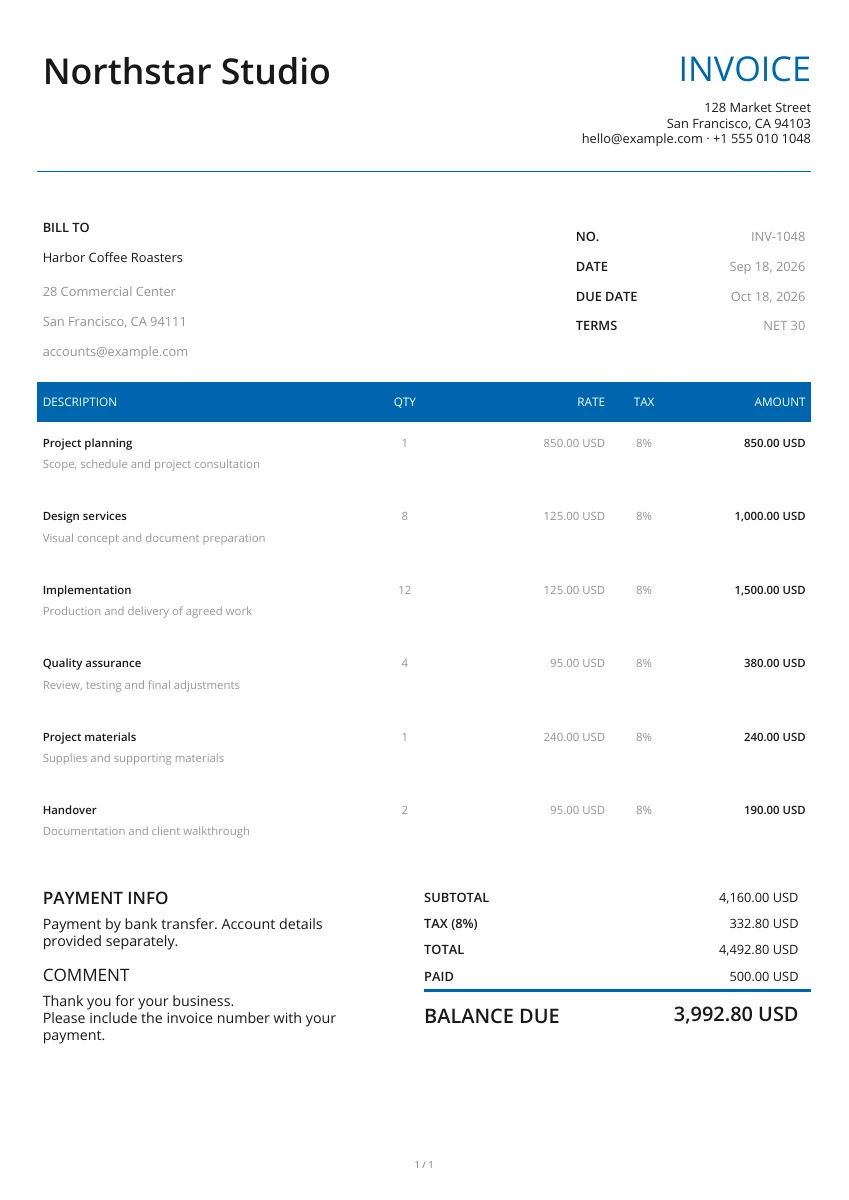
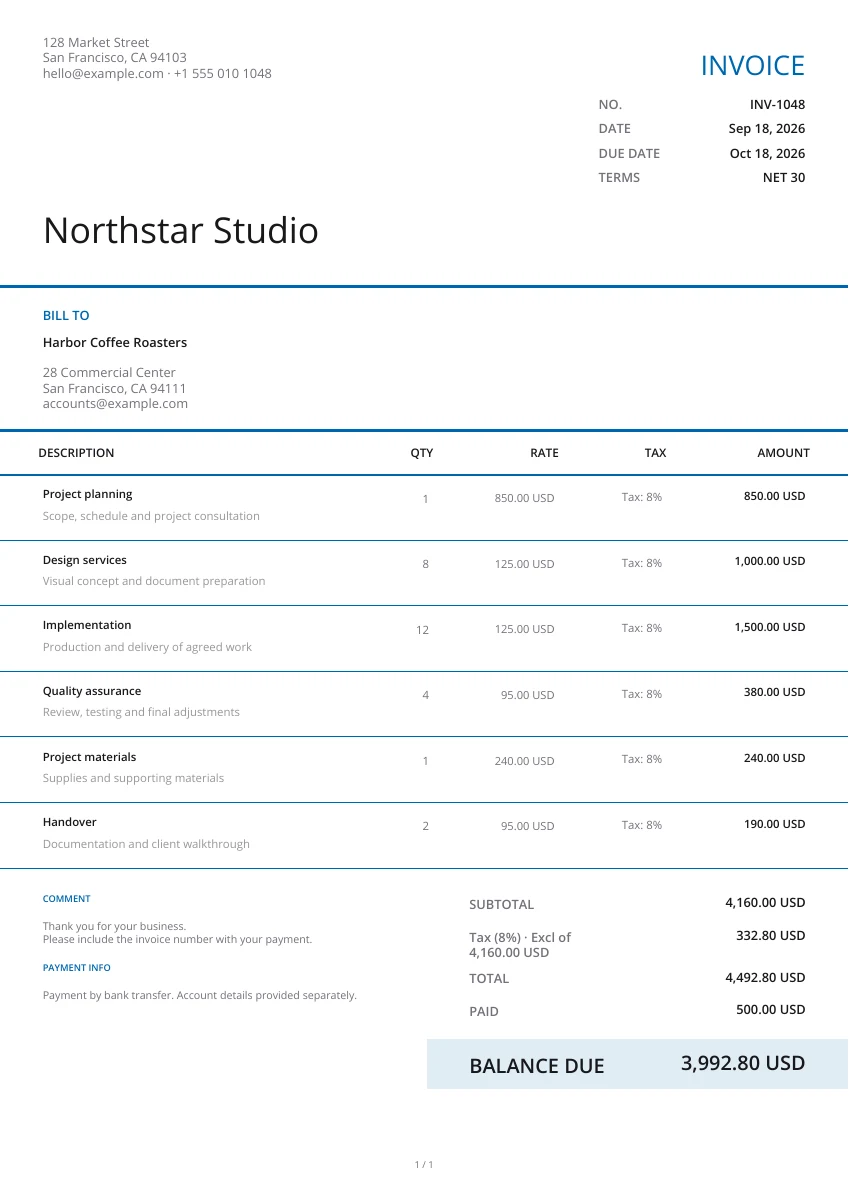
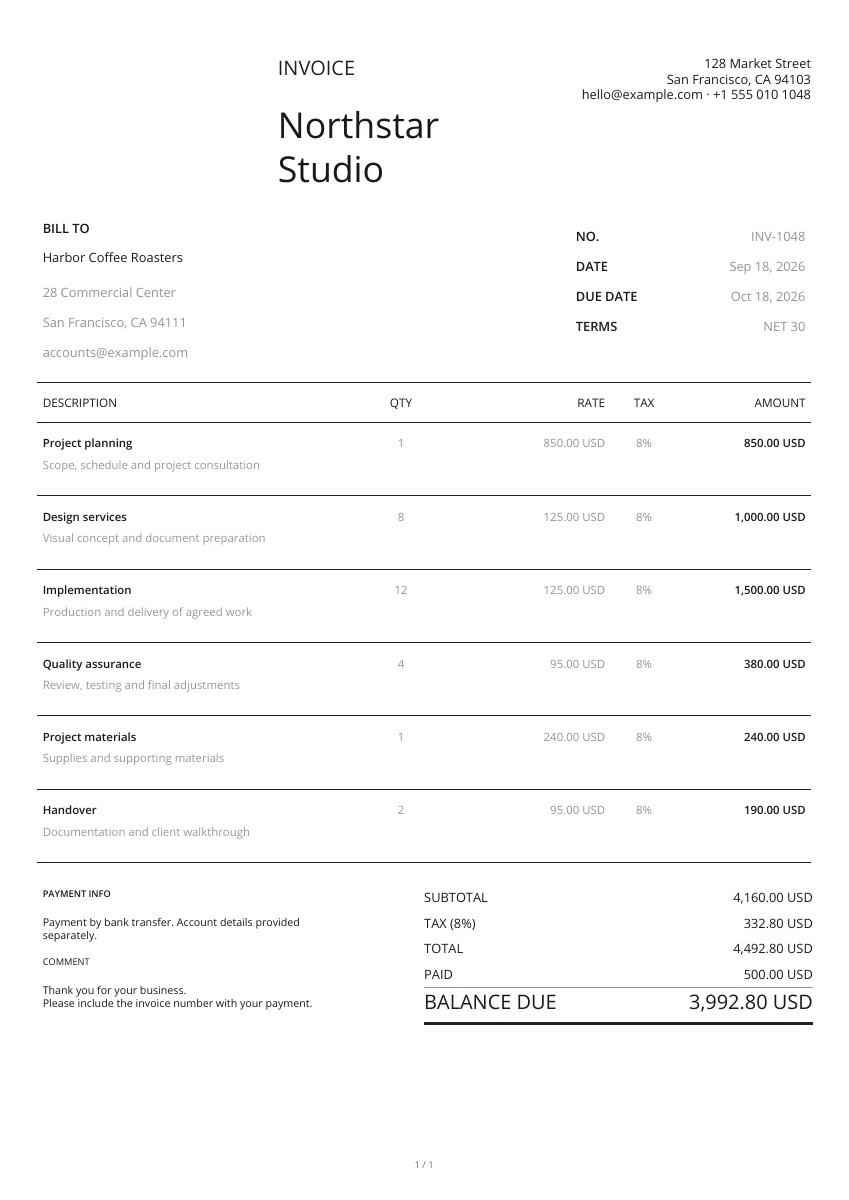
Start with a layout from the gallery. Add your logo and pick a header and color; you can change the design without retyping your details.
Enter the buyer and supplier, then list each product, quantity and agreed price. Add the delivery address, requested date and any purchasing conditions.
Open the PDF preview to check the finished pages, not just the form. Download the file when it is ready, then attach it to your own email or print a copy.
Give your supplier a clear purchase order
Header design
Choose from 21 layouts and set your header and color. The order details remain in place as you compare designs.
Add your logo
Add the purchasing business’s logo and contact details so the supplier can identify the buyer.
Preview PDF
Check product descriptions, quantities, prices and delivery instructions in the PDF. Attach product images when useful.
Keep purchase orders with supplier records
On your phone or computer
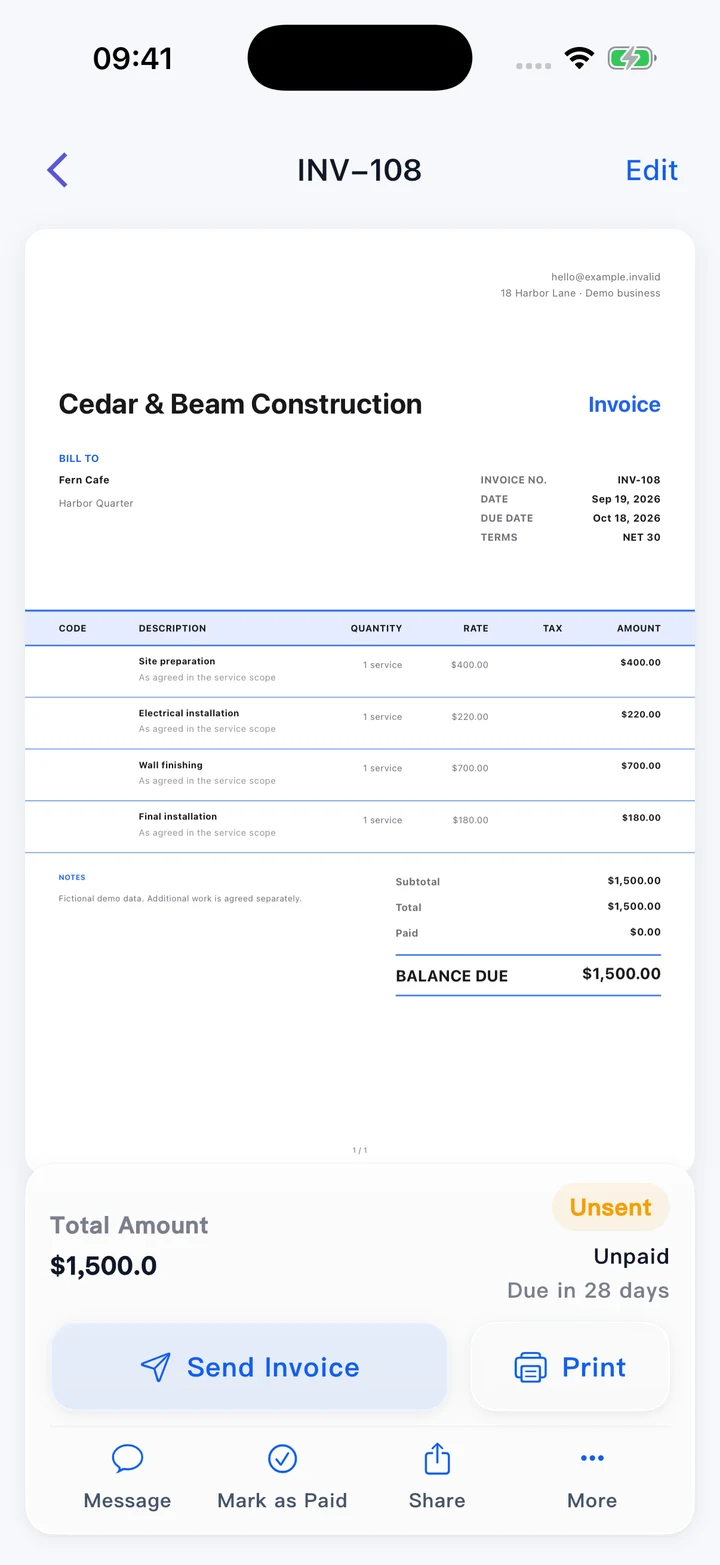
Use this editor in your browser. A downloaded PDF keeps its page layout when viewed on a phone, opened on a computer or printed.
Match the order, delivery and invoice
Keep the PO number on related correspondence. Compare the products received and the supplier’s invoice with the quantities and prices you ordered.
Record business expenses in the app
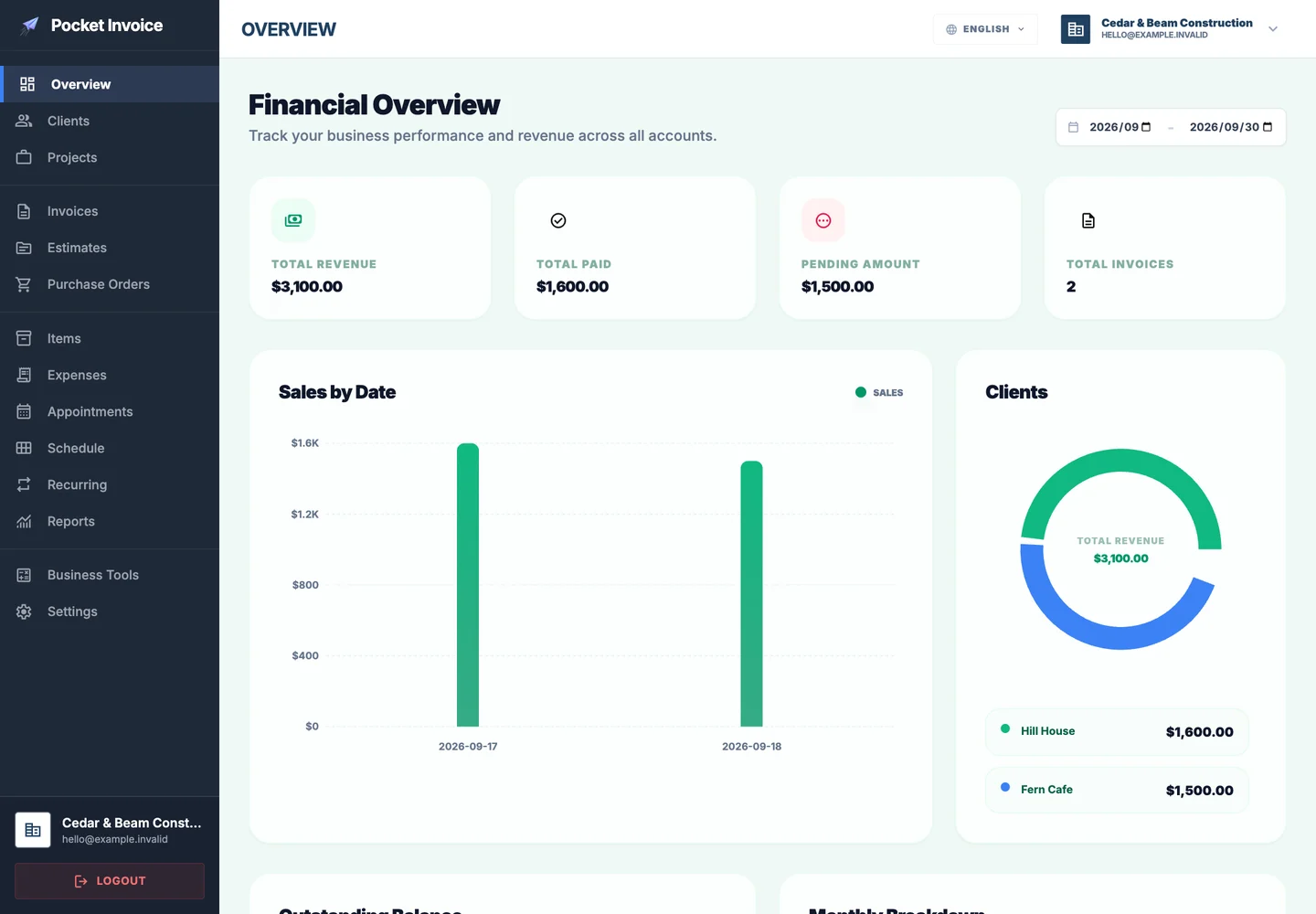
Use the Pocket Invoice app to keep expense and project records alongside your customer documents. This free page creates the PO PDF without saving an account record.
What to include in a purchase order
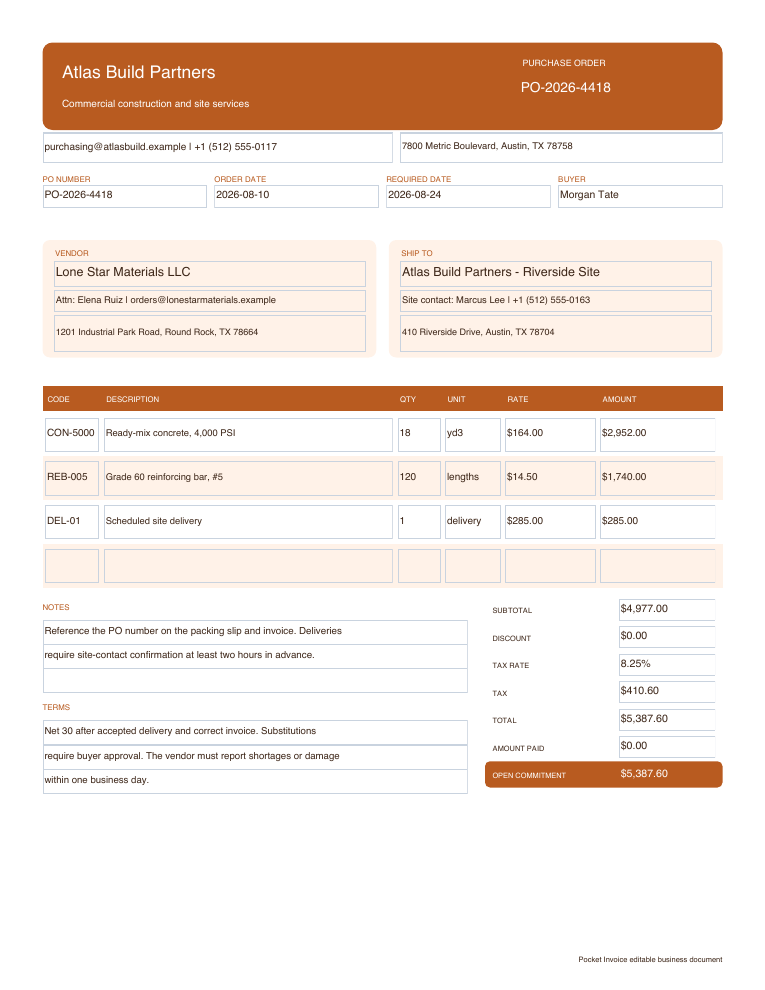
A purchase order is issued by the buyer to specify an order. Make the products, commercial terms and delivery requirements clear before sending it to the supplier.
- 01
Buyer and supplier
Enter the purchasing business and the supplier’s name, address and contact details.
- 02
PO number and issue date
Give the order a unique number. Add the supplier’s quotation or other reference if it helps identify the agreed purchase.
- 03
Products and quantities
List product names, specifications, units and quantities. Include model or part numbers in the description where needed.
- 04
Agreed prices and total
Record unit prices, currency, discounts, tax and freight where applicable. Check the expected order total.
- 05
Delivery address and date
Use Ship to for the receiving address. State the requested delivery date and access or handling instructions in the notes.
- 06
Purchasing and payment terms
Include the agreed payment schedule and any conditions for substitutions, delivery changes or order confirmation.
Choose a purchase order template
Enlarge the previews to compare order layouts. Choose Use template to open a purchase order with that design.
Browse templatesDownload a blank purchase order
Download a blank Word, Excel or fillable PDF purchase order. Excel includes formulas; check totals yourself when using Word or the fillable PDF.
Frequently asked questions
Is the purchase order generator free?
Yes. You can create and download a purchase order PDF without an account.
Who creates a purchase order?
The buyer prepares a purchase order for the supplier. It specifies the items, quantities, prices and terms the buyer wants to order.
How is a purchase order different from an invoice?
A purchase order specifies the buyer’s order. An invoice is issued by the supplier to request payment. Keep their references linked when checking the purchase.
Will this page remember my draft?
No. The form stays in this open page and is not saved as an account document. Download your PDF before leaving; use the Web app for saved records.
Does downloading the PO place the order?
No. The generator prepares a PDF. Send it to your supplier yourself and obtain confirmation of the order and delivery terms.
How are my details used?
Your details are sent securely to our PDF service only when you preview or download. This tool does not save documents to an account.
Create another document
Create your purchase order
Confirm the items, prices and delivery instructions, then download the PO to send to your supplier.