
Free Purchase Order Generator
What to buy? Quantities? Unit prices? Where to deliver? Describe the requirements in a purchase order. View the PDF, download it, send it to the supplier and ask for confirmation.
- Automatic calculations
- Download PDF
The PDF service processes the document content during preview and download. On this page, the document is not saved as an account document. Download it before leaving.
How to create a purchase order online?
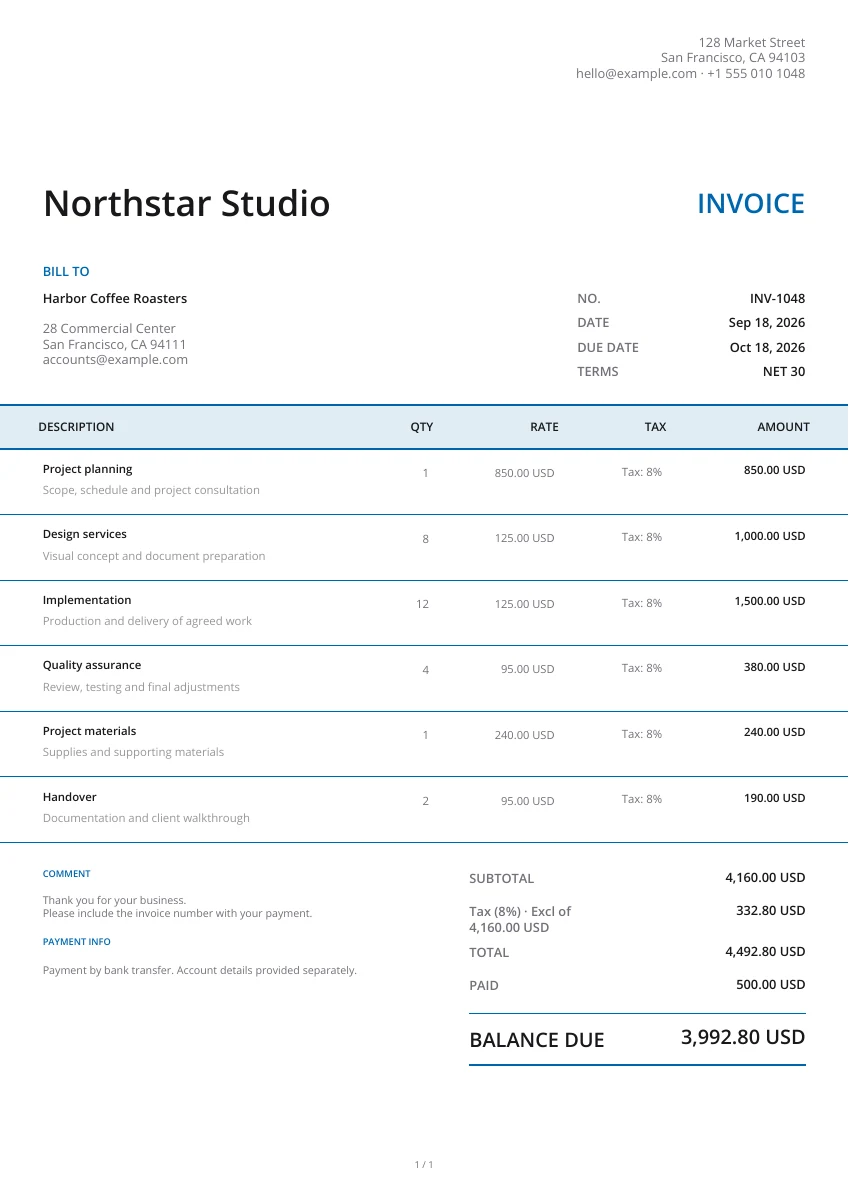
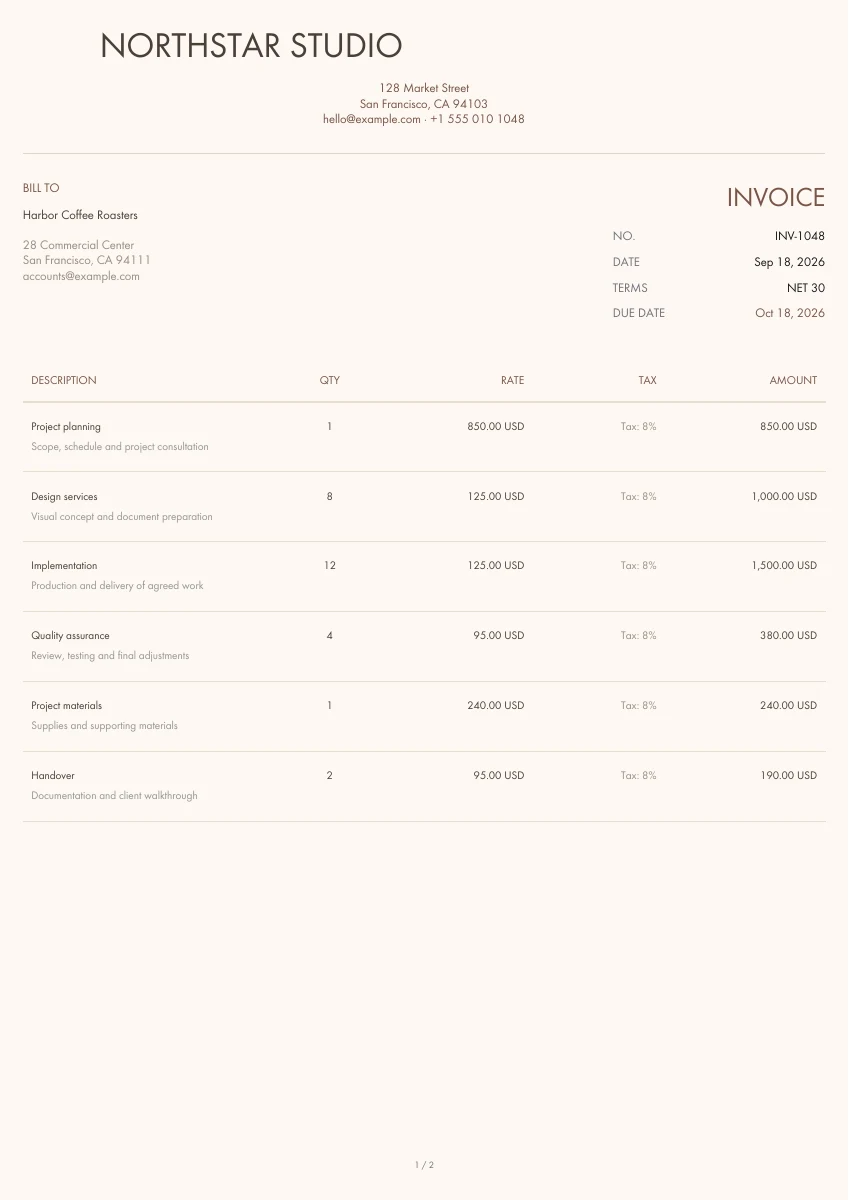
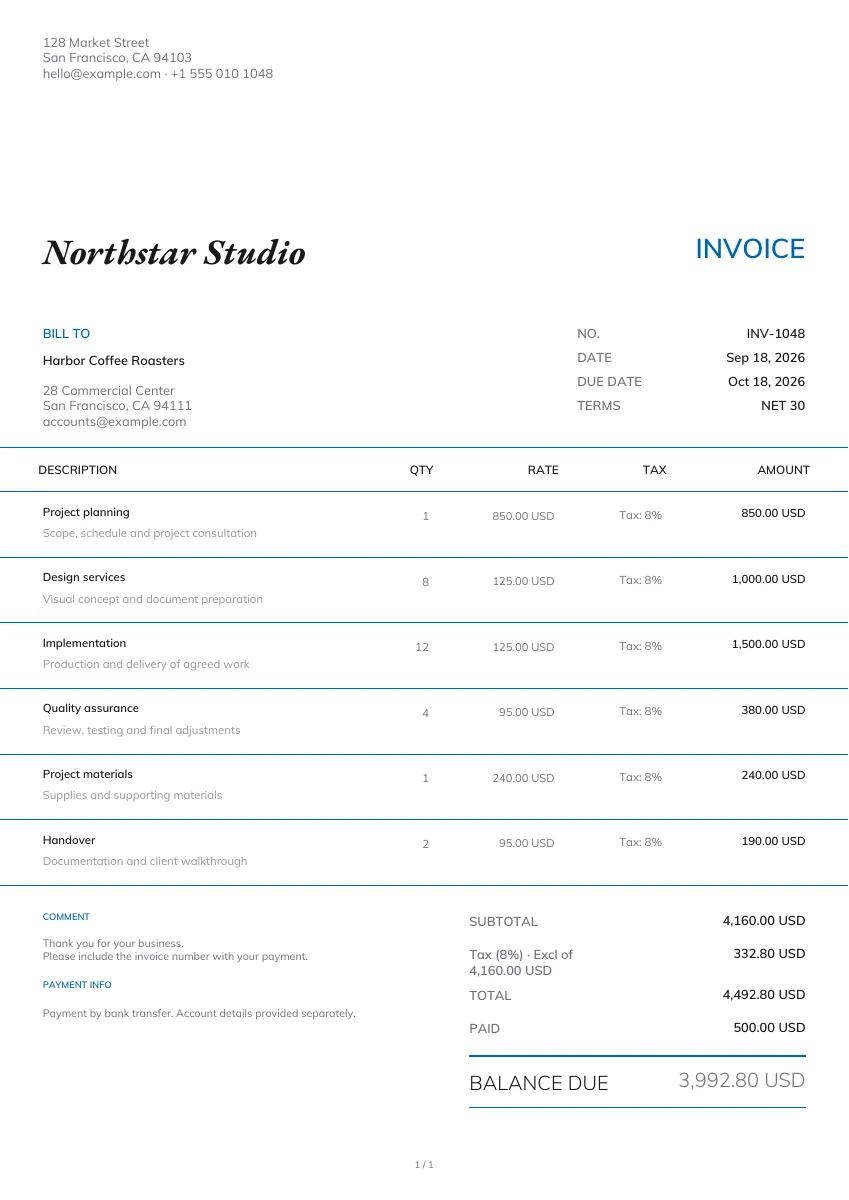
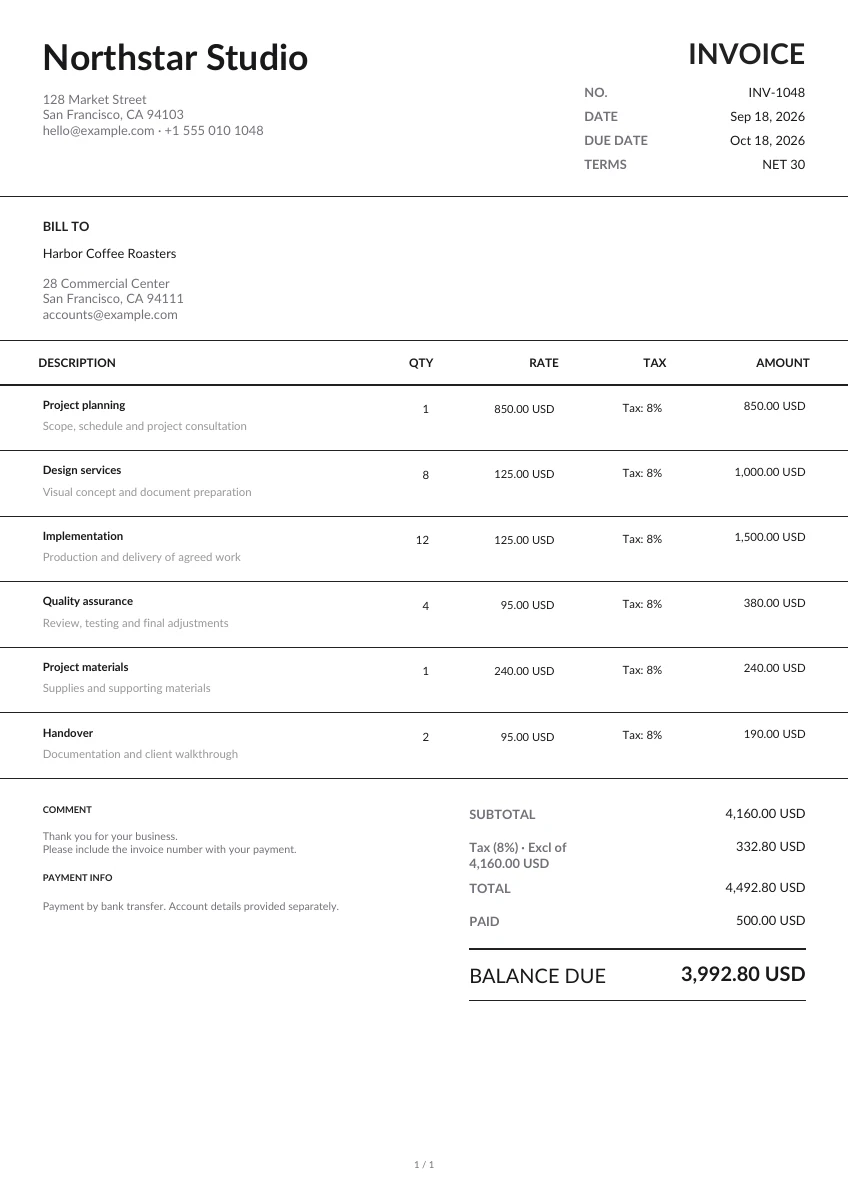
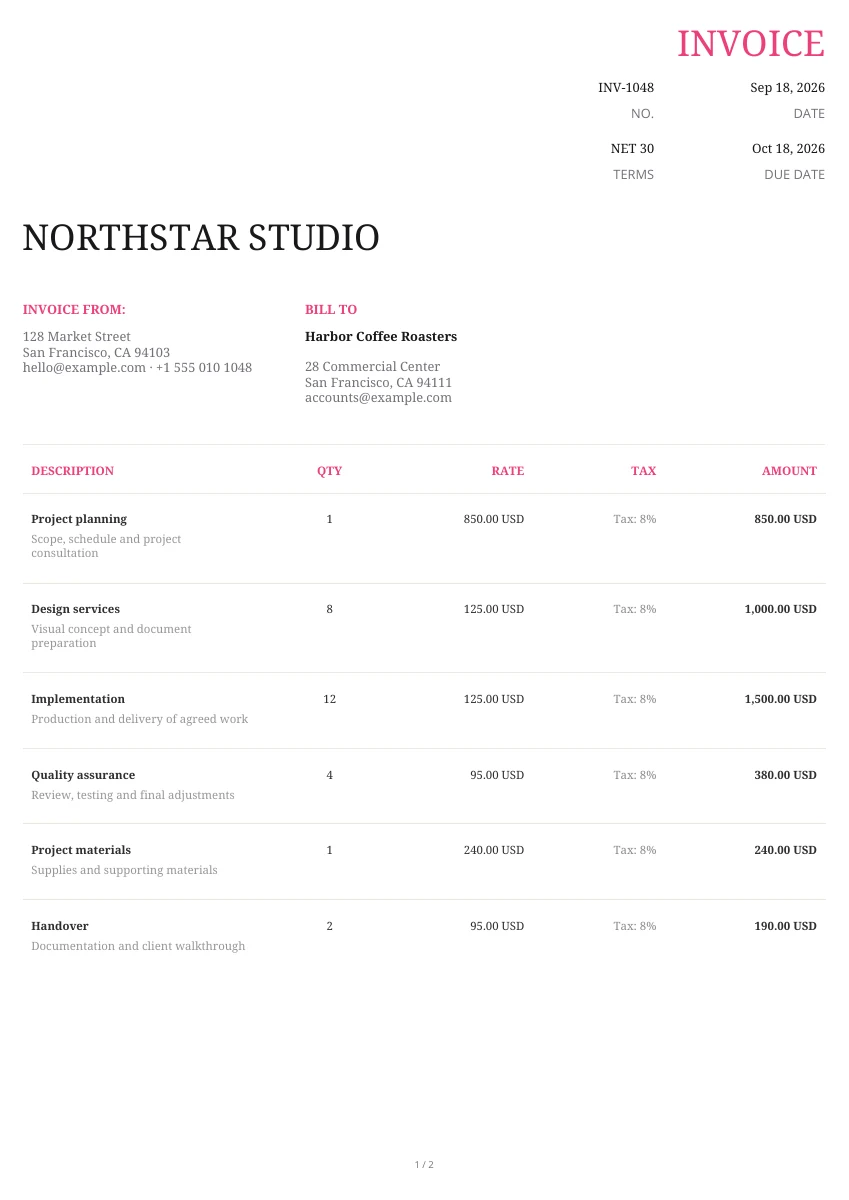
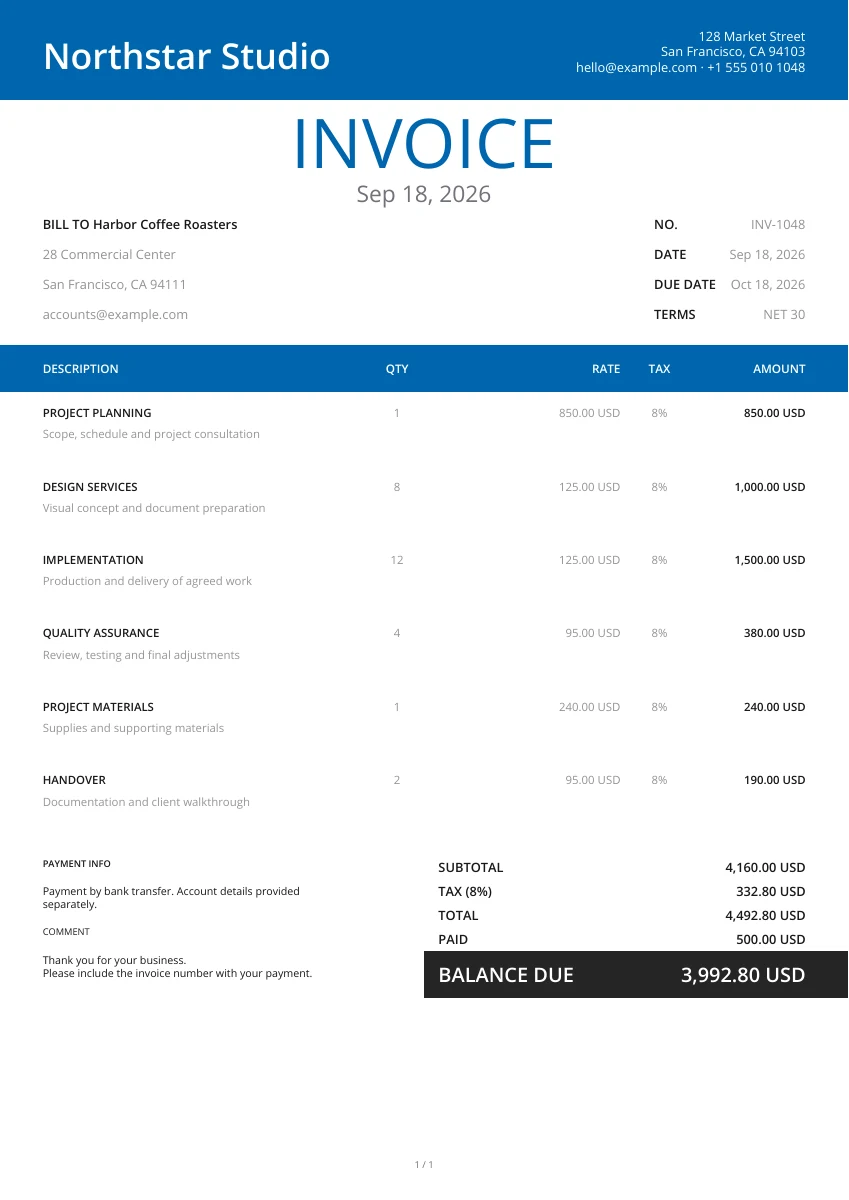
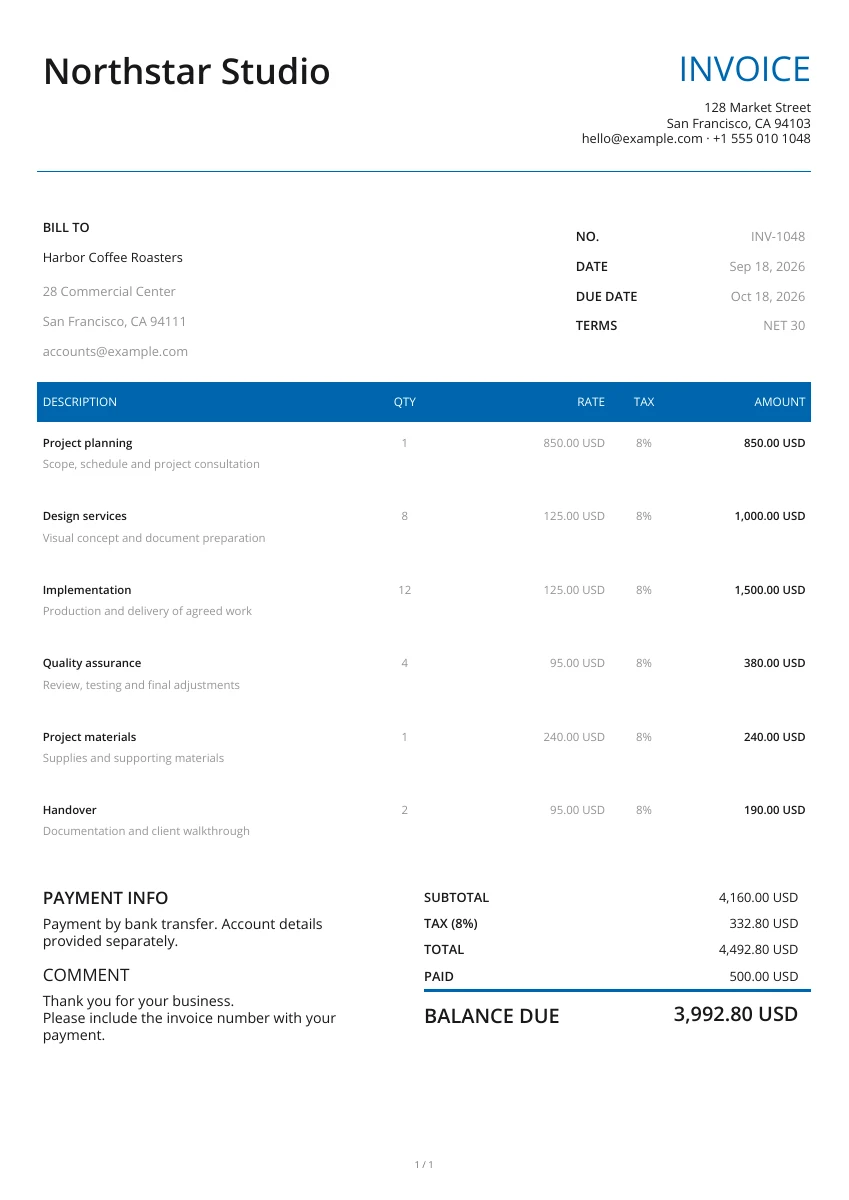
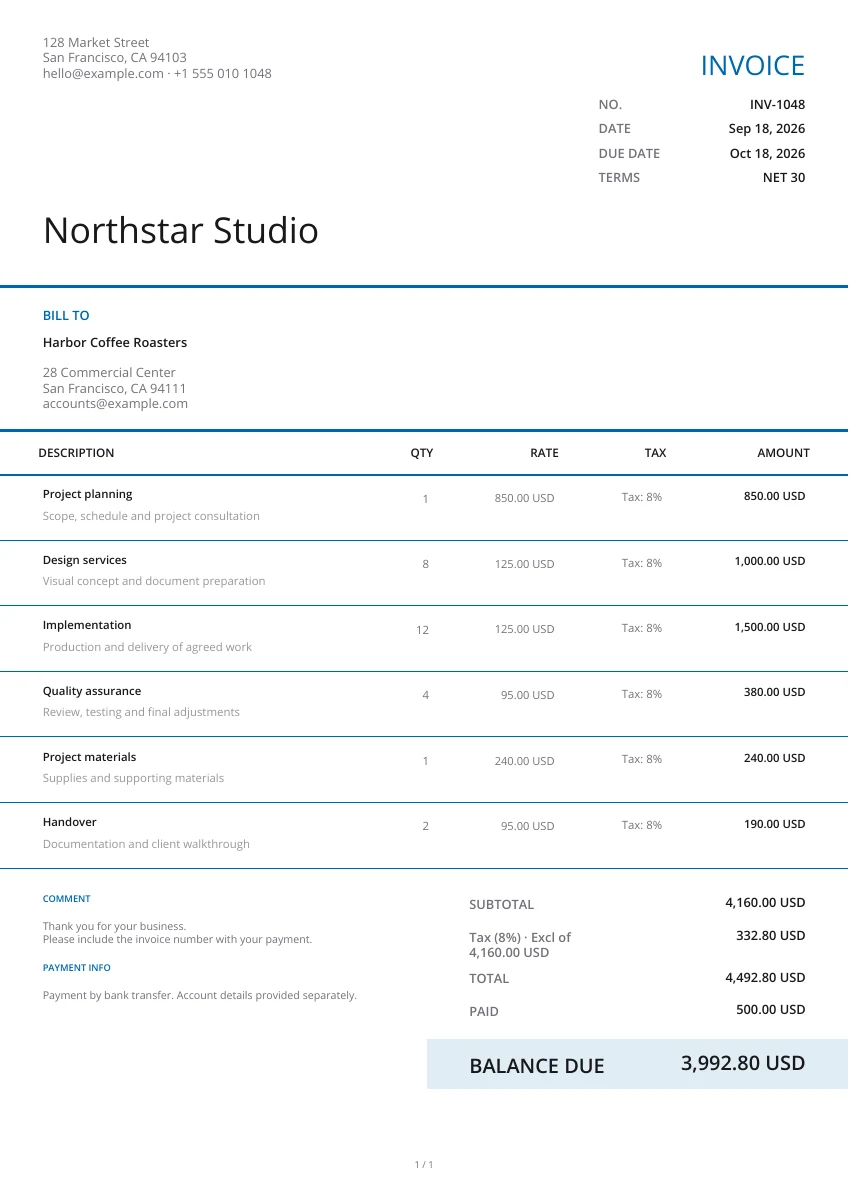
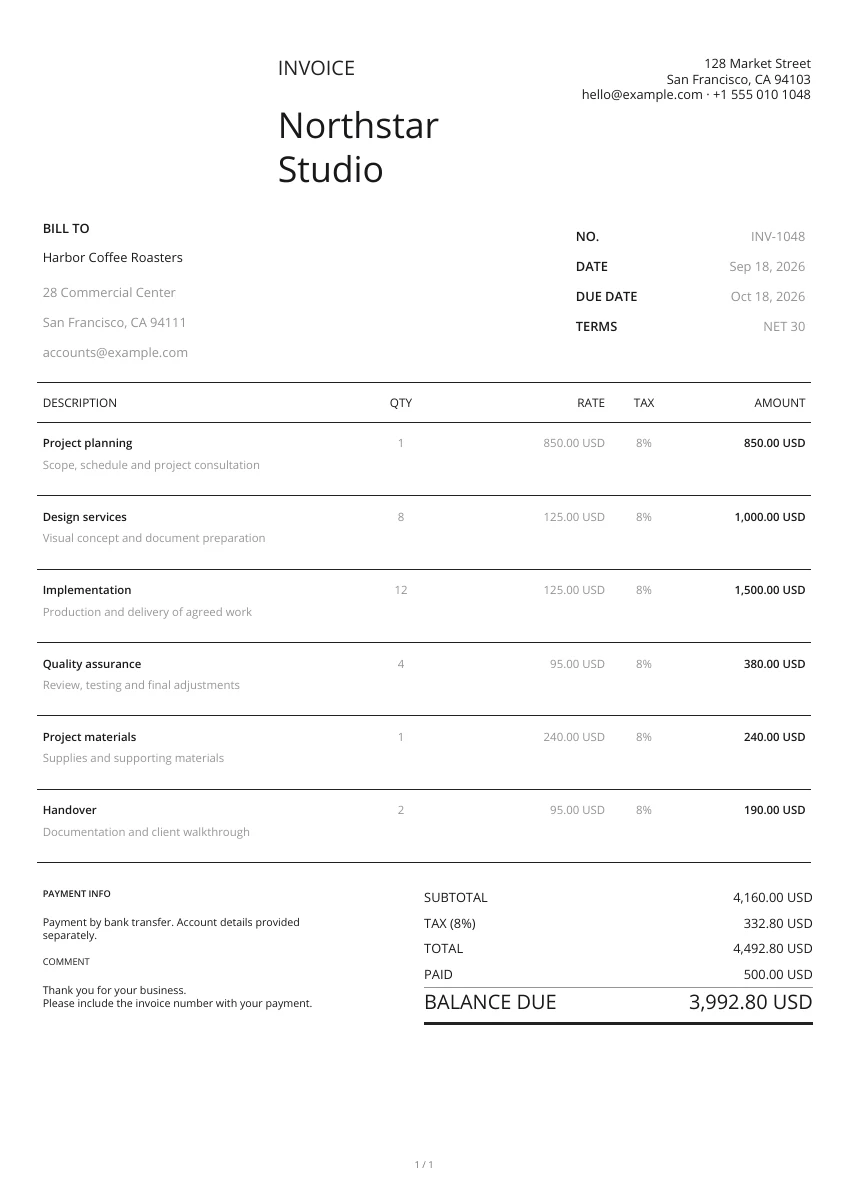
Choose from 21 layouts. You may add the purchasing company's logo. Set the colour, header and watermark. You may change the design without typing the entered details again.
Who is the buyer? The supplier? Address of delivery? For each item, specify model, specifications, quantity, agreed unit price and currency. Fill in the notes or terms with delivery dates, split deliveries and payment terms.
View the actual PDF. Review the PO number, goods, quantities, amounts and address. Check any image attachments. Download it and send it to the supplier to confirm the order and delivery terms.
Put all your purchase needs in one place
Record specifications, quantity and price on one line for each item
Separate each model and size. Mention the unit in the name or extra information, so the supplier does not have to wonder whether “10” means ten pieces or ten boxes. The tool calculates quantity × unit price, applies the whole-order discount you specify, adds tax on the discounted subtotal at the entered rate, then adds shipping costs.
Delivery address and requirements
The buyer's address could differ from the delivery address. Indicate where this delivery should go, when, who to contact, how to access the site and any handling requirements. State how substitutes and date changes will be confirmed in the terms.
Business branding and images
Use the purchasing company's logo, colours and design so the supplier knows who the buyer is. If a specification needs an image, attach it and preview its position in the PDF.
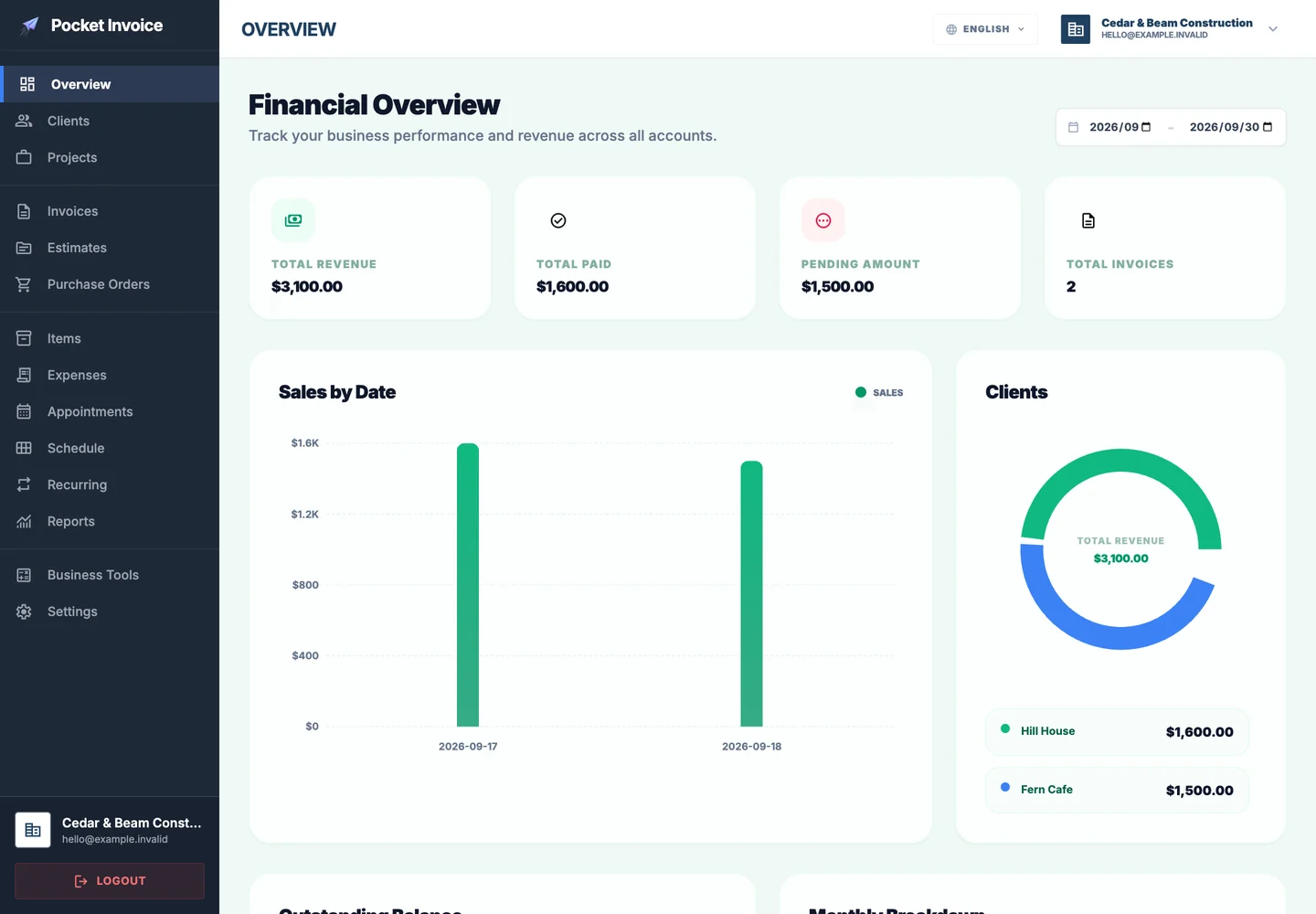
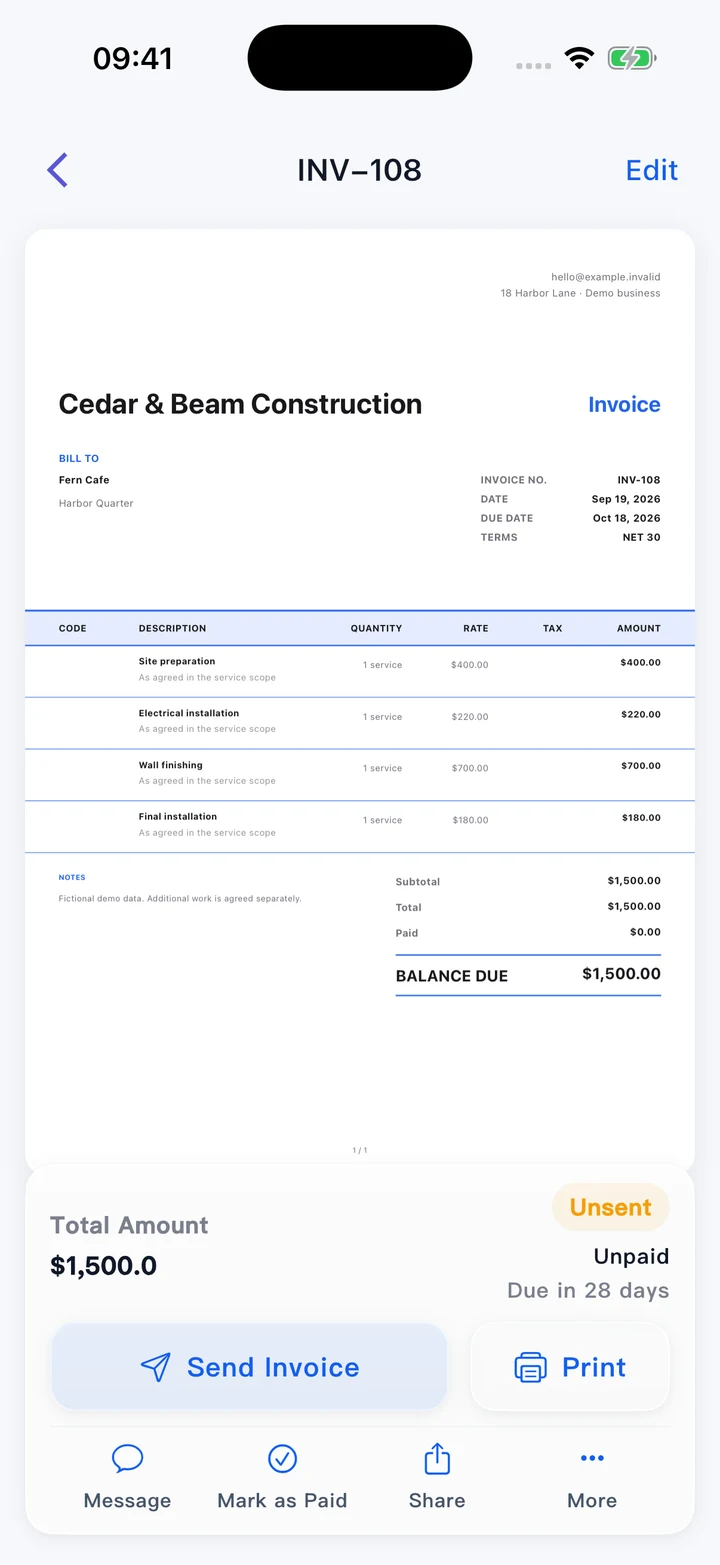
After the PO, follow up deliveries and supplier bills
View it on your phone or computer
Use the editor in a browser. The downloaded PDF has a fixed page layout. You can view it on your phone or computer, or print it.
Actual quantity per delivery
The PO shows the quantities ordered. The supplier can use a separate delivery note to record the actual quantity in each delivery, quoting the PO number. Check the goods on receipt. Once the supplier invoice arrives, check goods, quantities and prices. This page does not automatically track receiving or inventory.
Expenses in the app
In the Pocket Invoice app, you can handle expenses, projects, customers and invoice records. A PO PDF made here is not automatically saved to your account. For ongoing business management, create the corresponding records in the app.
Contents of the purchase order
A PO is an order issued by a buyer to a supplier. It describes the required goods, quantities, prices and delivery method. Follow company procedures before submitting the order.
- 01
Buyer and supplier
Purchasing company's name, address and contact information. Optionally, upload your logo. Add the supplier's name, address and contact information, making clear who the order is for.
- 02
PO number and date
A separate PO number and issue date. Provide the supplier's quote number or another reference so subsequent correspondence concerns the same order.
- 03
Goods, quantities and unit prices
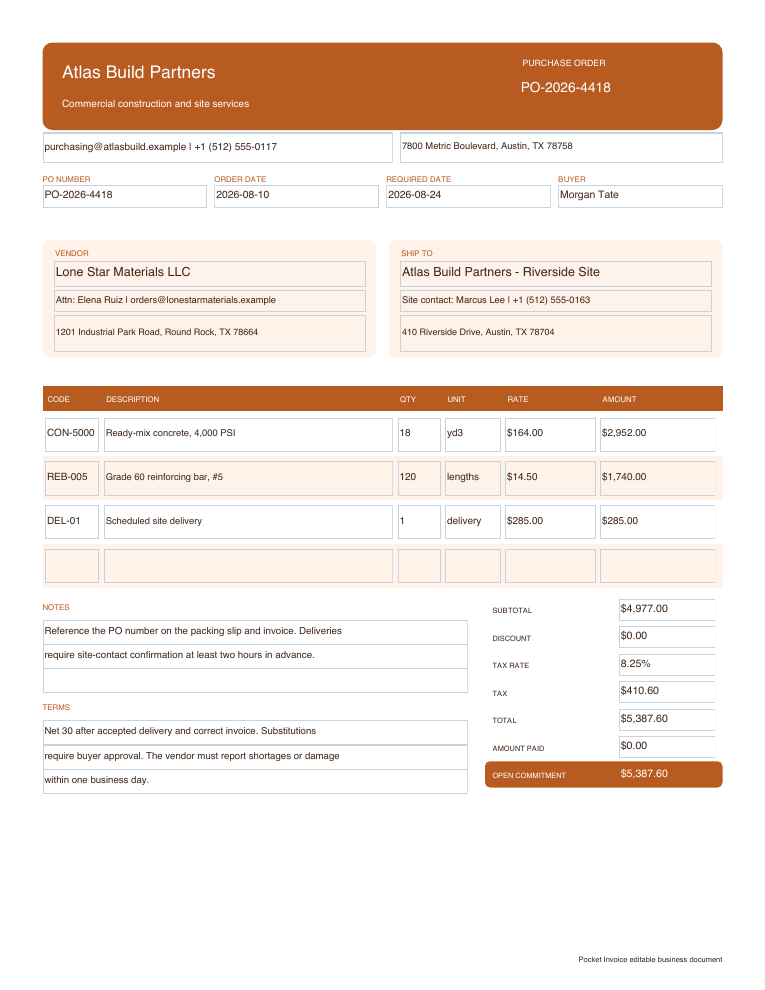
Specify individual items on separate lines: models, sizes, quality or other characteristics. Use the additional description to clarify differences between similar items. Specify quantities ordered and agreed prices. Include units such as pieces, boxes or metres in the name or description to avoid confusion.
- 04
Charges, currency and total
Select the currency. Confirm discounts, tax, shipping and total. Changing currency does not convert amounts. Enter actual payments in Amount paid, not a planned advance payment. Entering the amount does not make a transfer.
- 05
Delivery
Enter the actual delivery address. Specify the date, contact, split deliveries and access requirements in notes or terms. The due/expiry date changes with payment terms and does not fully describe delivery conditions.
- 06
Purchasing and payment terms
Specify agreed acceptance arrangements, payment timing, substitutes, changes and the supplier's confirmation method. This page does not obtain confirmation automatically.
Select a purchase order template
Enlarge the preview. Select a design and specify goods and supplier details. Changing the design does not affect the purchasing information already entered.
Browse templatesDownload purchase order templates
Download separate Word, Excel and fillable PDF files for offline editing. They include sample details. Replace them with your company, supplier, products, amounts and terms, then check and save.
Excel includes line and summary formulas. Make sure formulas include added rows. Enter tax and discount as the file requires. Check Word and fillable PDF amounts yourself. These are separate templates, not exports of the form above to another format.
Any questions about purchase orders?
Who creates the PO? How do I fill it out online?
The buyer creates the PO for the supplier. Fill in both parties' details, a separate number and issue date. Enter goods, specifications, units, quantities and agreed prices, then receiving, delivery and payment requirements. Check the actual PDF and download it.
How does a PO differ from the supplier's invoice?
The buyer's PO says what is ordered. The seller's invoice shows what is charged. Match by PO number to check the order, goods received and bill. They serve different purposes. Downloading a PO does not mean payment has been made.
Where do I enter the delivery date?
Enter dates, split deliveries, address, contact and requirements in notes or terms. The form's due/expiry date relates to payment terms. That date alone does not show the delivery arrangements.
How do I record split deliveries?
Put ordered quantities in the PO and actual quantities in each delivery note, using the same PO number. Check against receiving records. This page does not automatically track inventory or quantities still undelivered.
Can I download Word and Excel?
Use the separate Word, Excel and fillable PDF templates. Replace the examples and fill in your business information. Excel has formulas; check amounts yourself in the other formats. The online editor downloads a PDF of the current entries. It does not convert them to Word or Excel.
Is it free? Does it approve, send or order automatically?
Yes. Filling in, previewing and downloading are free. This page creates a PDF. It does not approve it, send it to the supplier or make the purchase for you. Confirm internally, then send it yourself and obtain the supplier's confirmation of the order and terms.
Will I get a draft after closing the page?
It is not automatically saved to your account. Download before closing. To keep ongoing expense and business records, create the corresponding records in the app.
How do the details become a PDF?
The PDF service processes document content during preview or download and creates the file. This page does not save the PO to your account or email it directly. Download it to send or print yourself.
Other documents
Create a PDF from your purchasing requirements
Check goods, prices and delivery information, then download. Send it to the supplier for confirmation.