
Free quote generator
Give your customer a clear price for the work you are offering. List what is included, set a validity date and download your quote as a PDF.
- No sign-up required
- Automatic calculations
- Download PDF
Your details are sent securely to our PDF service only when you preview or download. This tool does not save documents to an account.
How to create a quote online
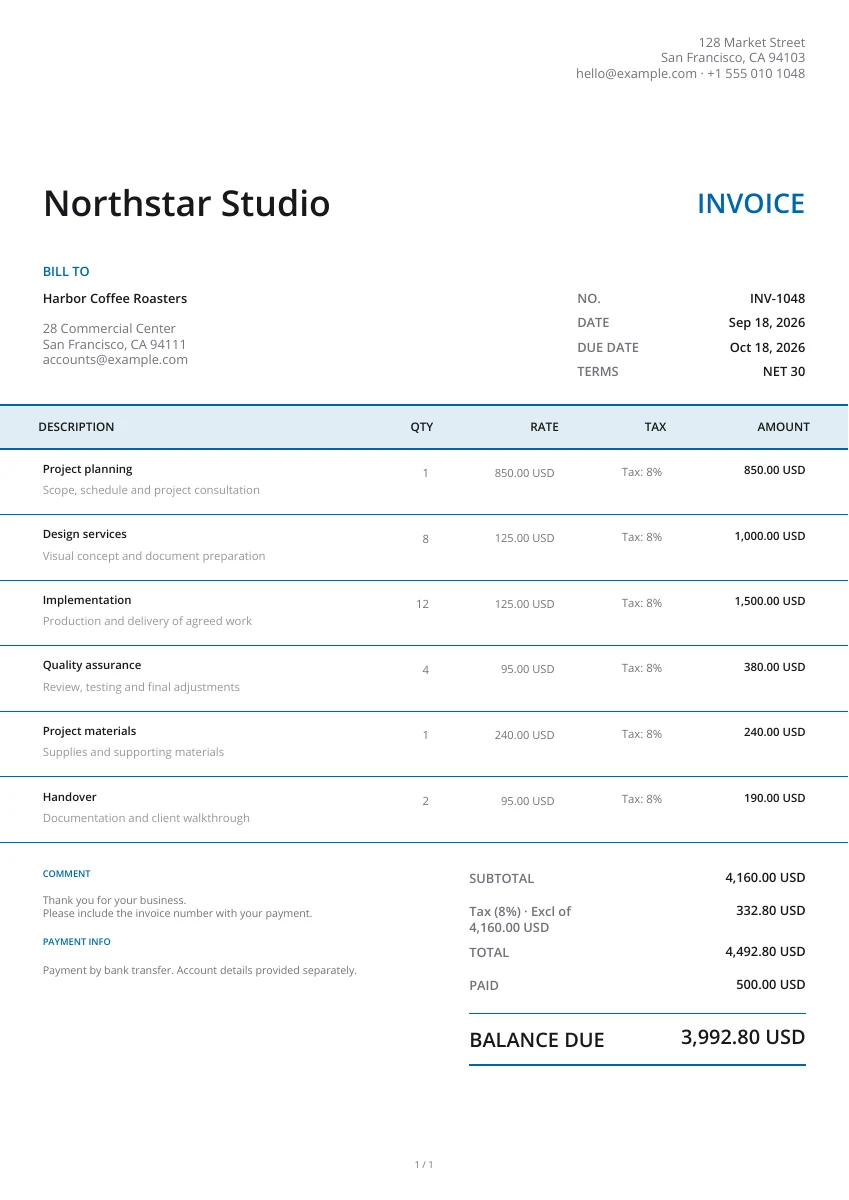
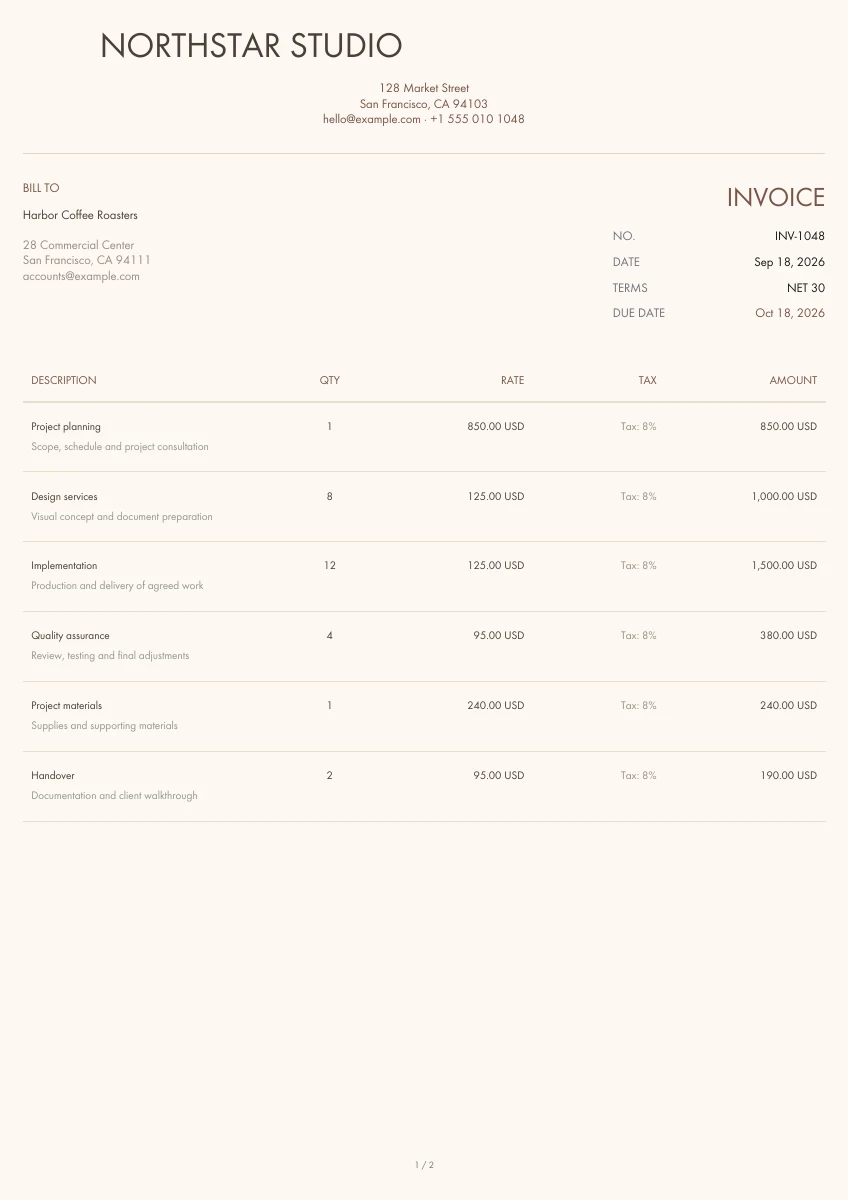
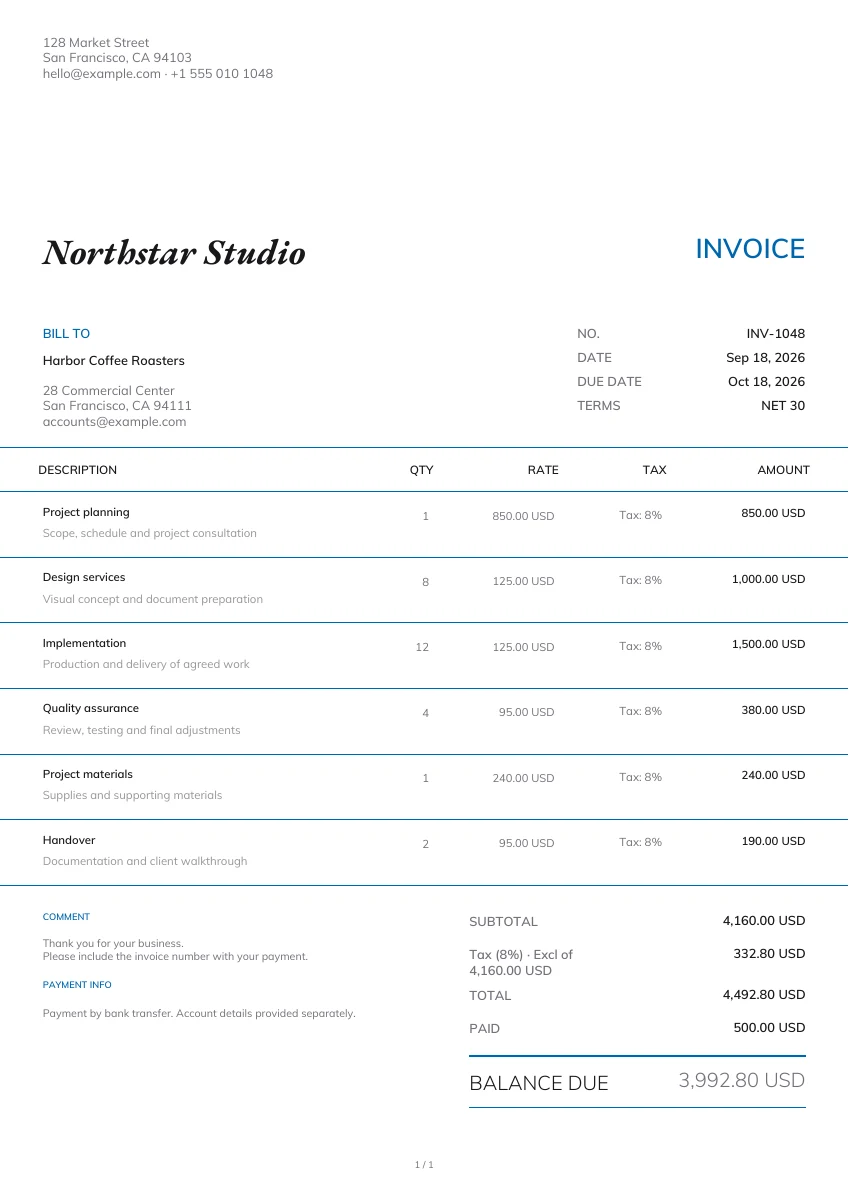
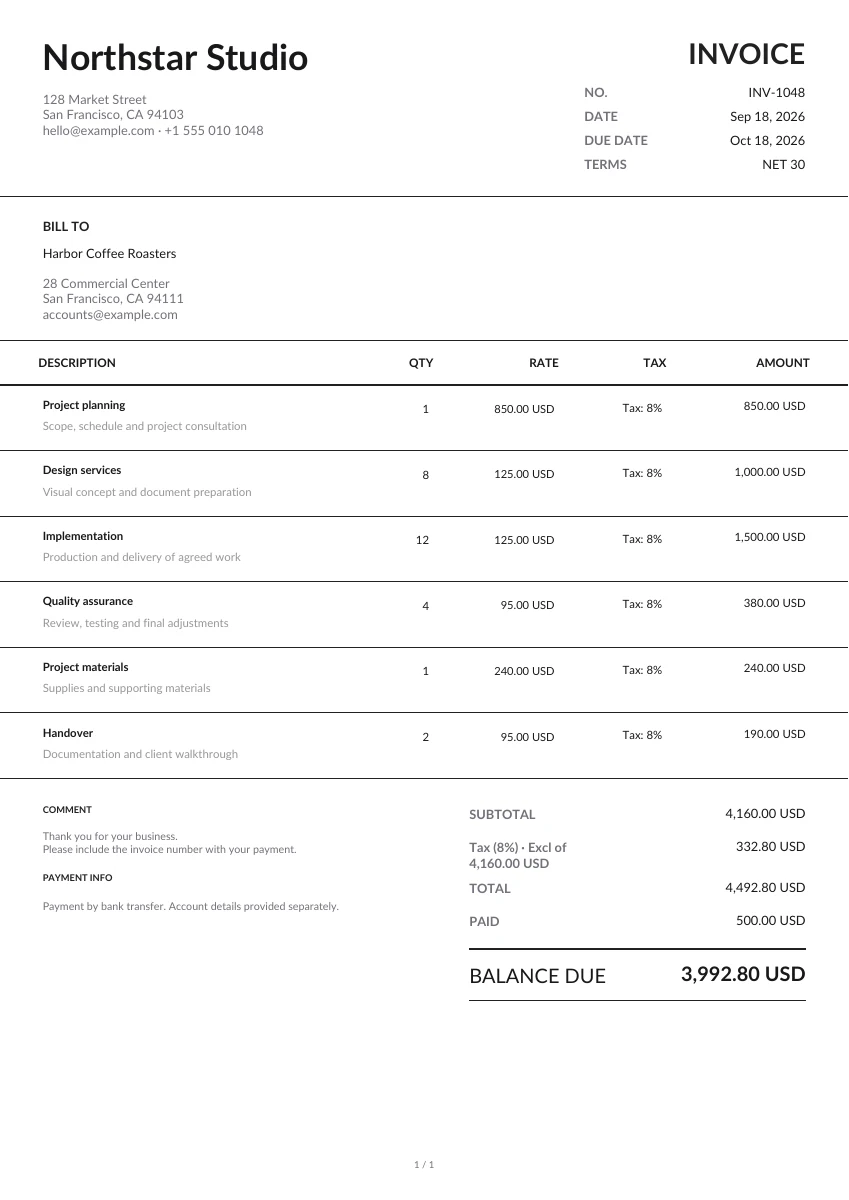
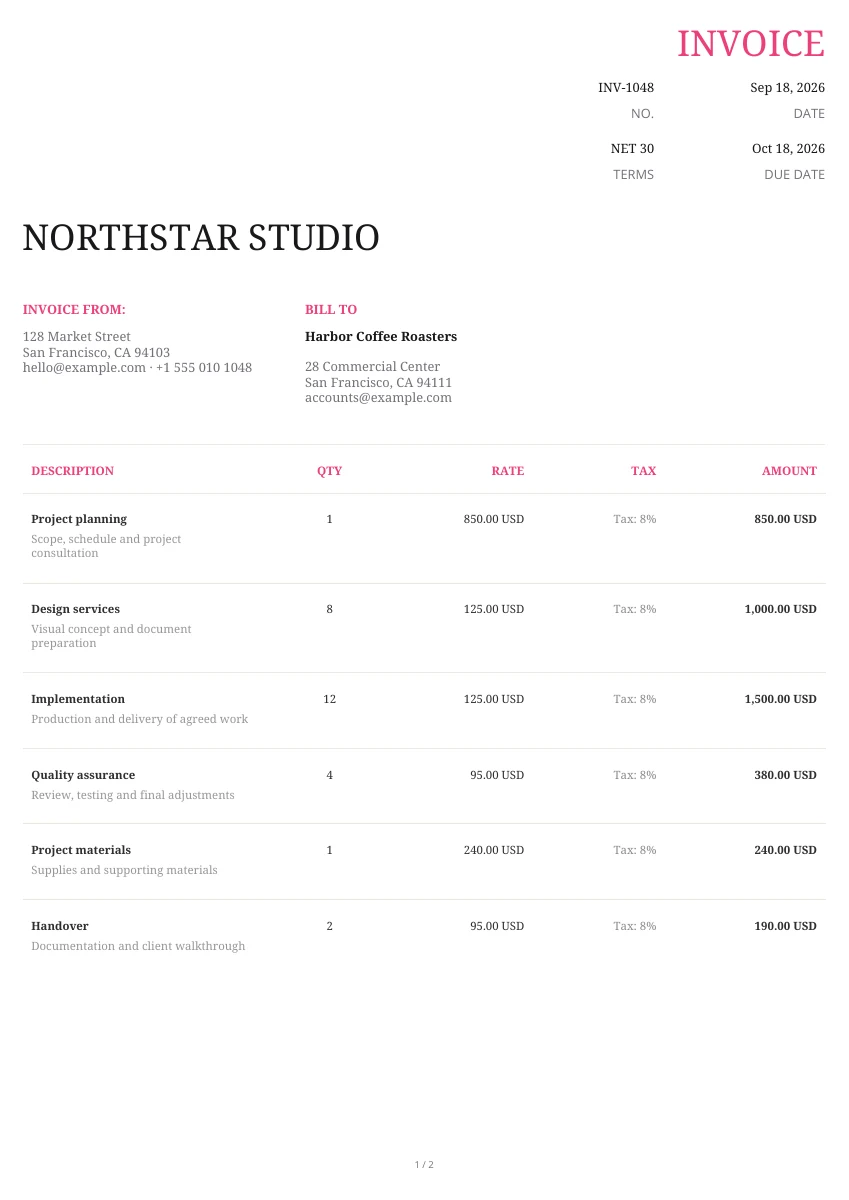
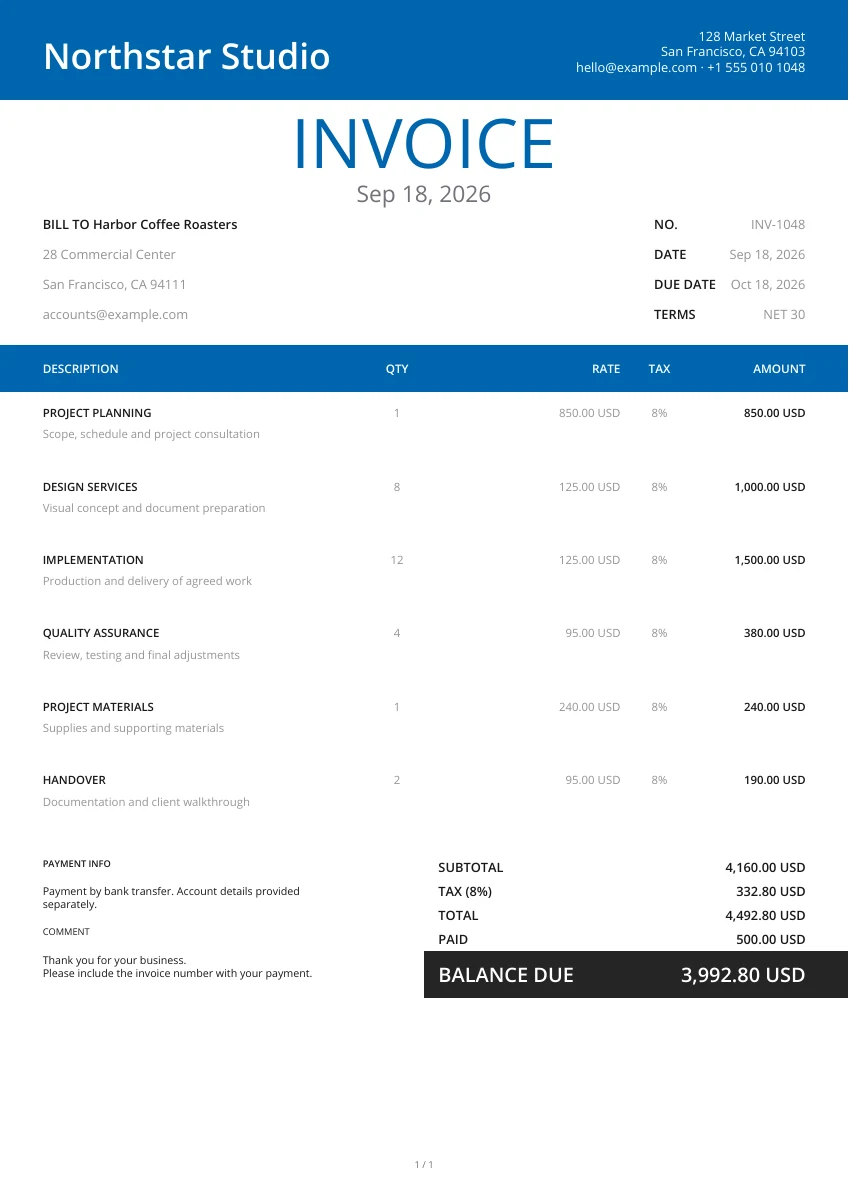
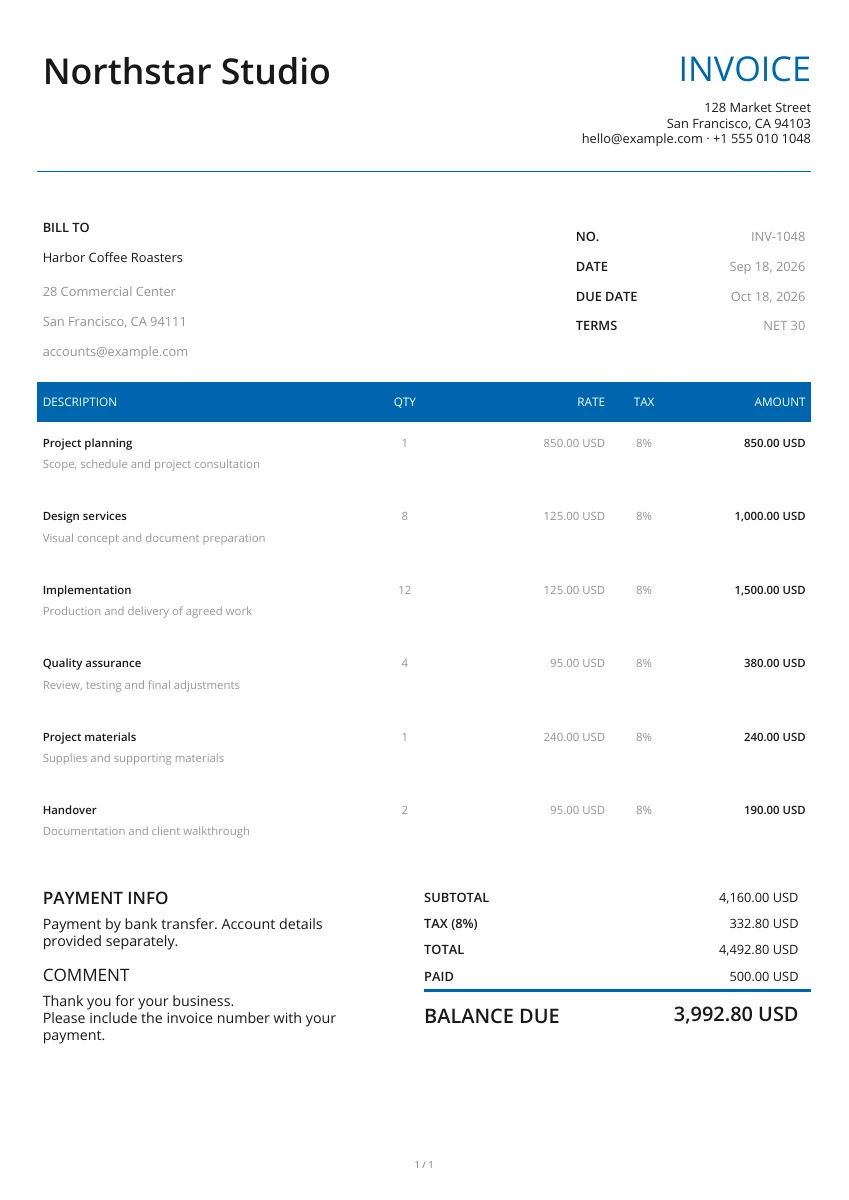
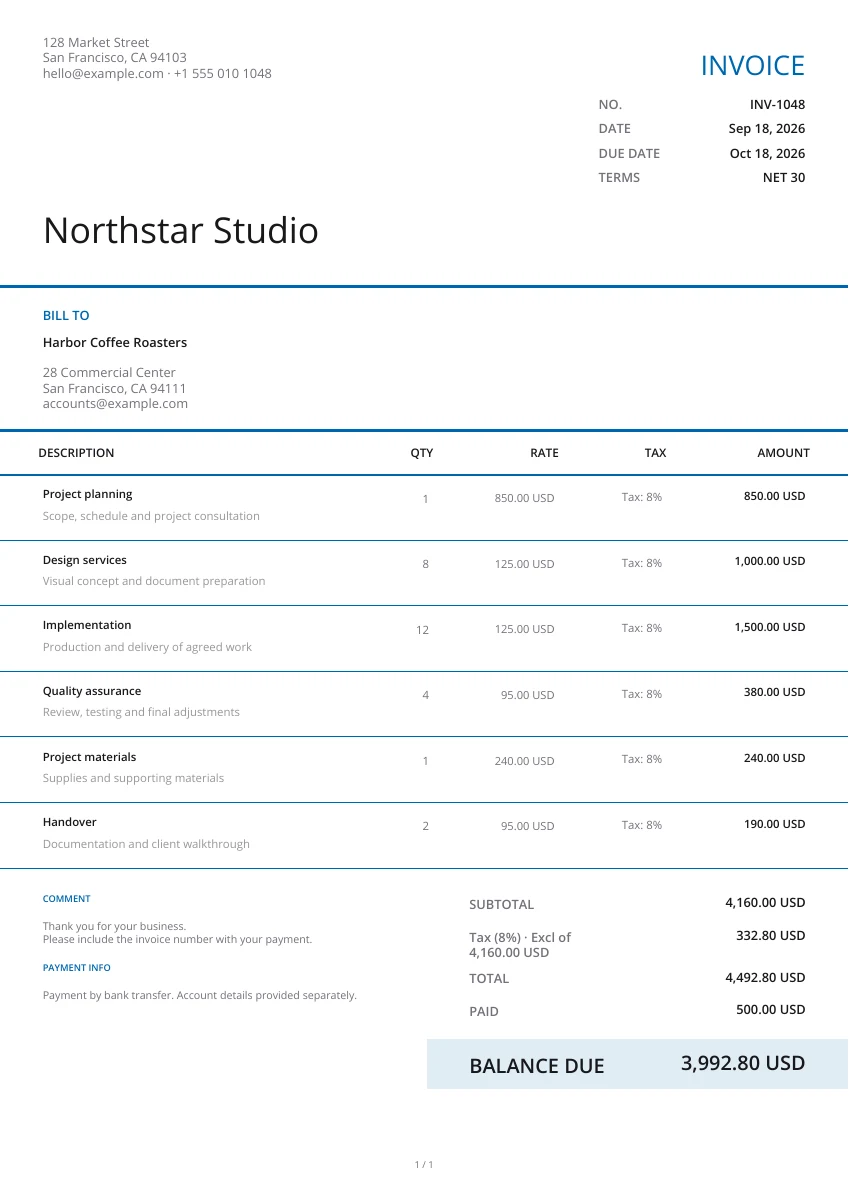
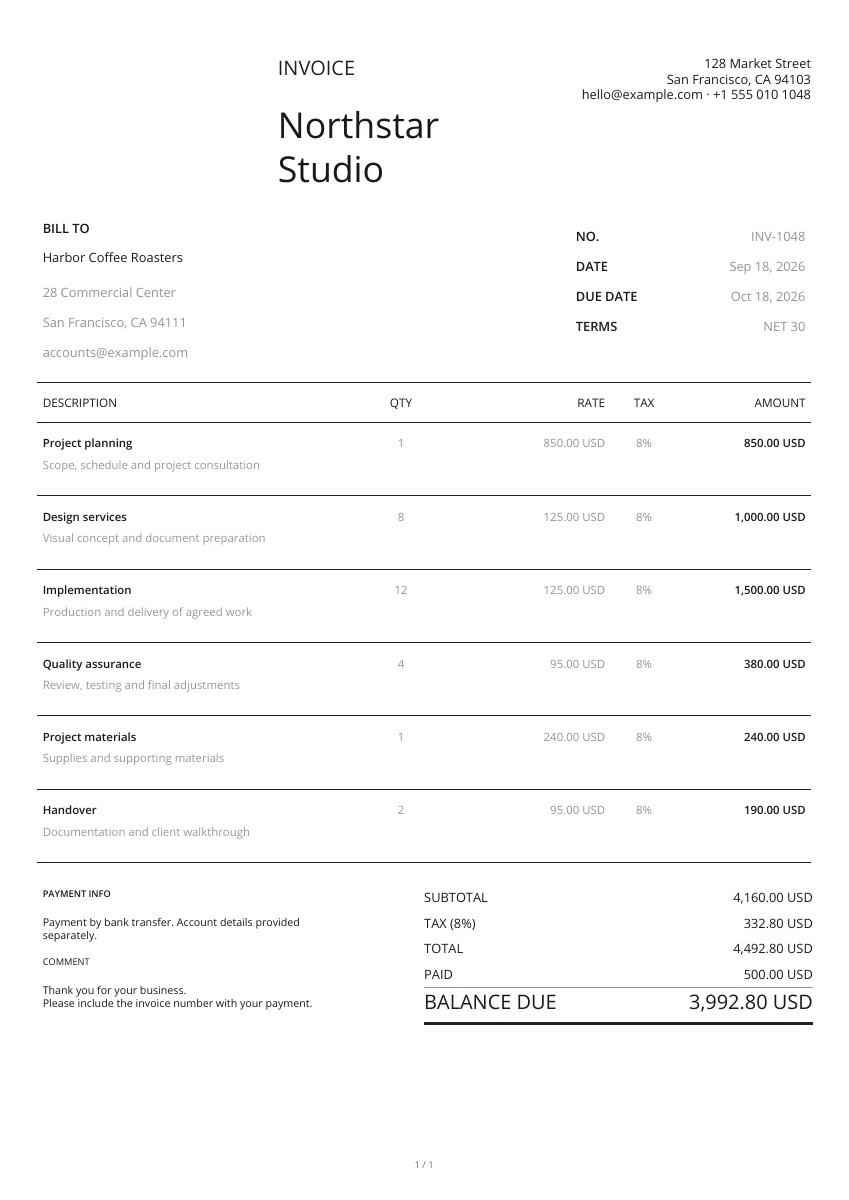
Start with a layout from the gallery. Add your logo and pick a header and color; you can change the design without retyping your details.
Add the customer and project reference. Describe the goods or work you are offering, enter the agreed quantities and rates, and state how long the offer is valid.
Open the PDF preview to check the finished pages, not just the form. Download the file when it is ready, then attach it to your own email or print a copy.
Present your quote clearly
Choose a quote design
Choose from 21 layouts, then set a header and color. You can compare designs without entering the offer again.
Add your logo
Add your logo and contact details so the customer knows who is providing the offer.
Preview PDF
Preview the quote to check the scope, prices and conditions together. Attach images when they help identify a product or proposed work.
Keep the agreed quote for later invoicing
On your phone or computer
Use this editor in your browser. A downloaded PDF keeps its page layout when viewed on a phone, opened on a computer or printed.
Identify the accepted version
Keep the quote number and the version your customer accepts. Confirm changes to the scope or price before preparing the invoice.
Manage customer documents in the app
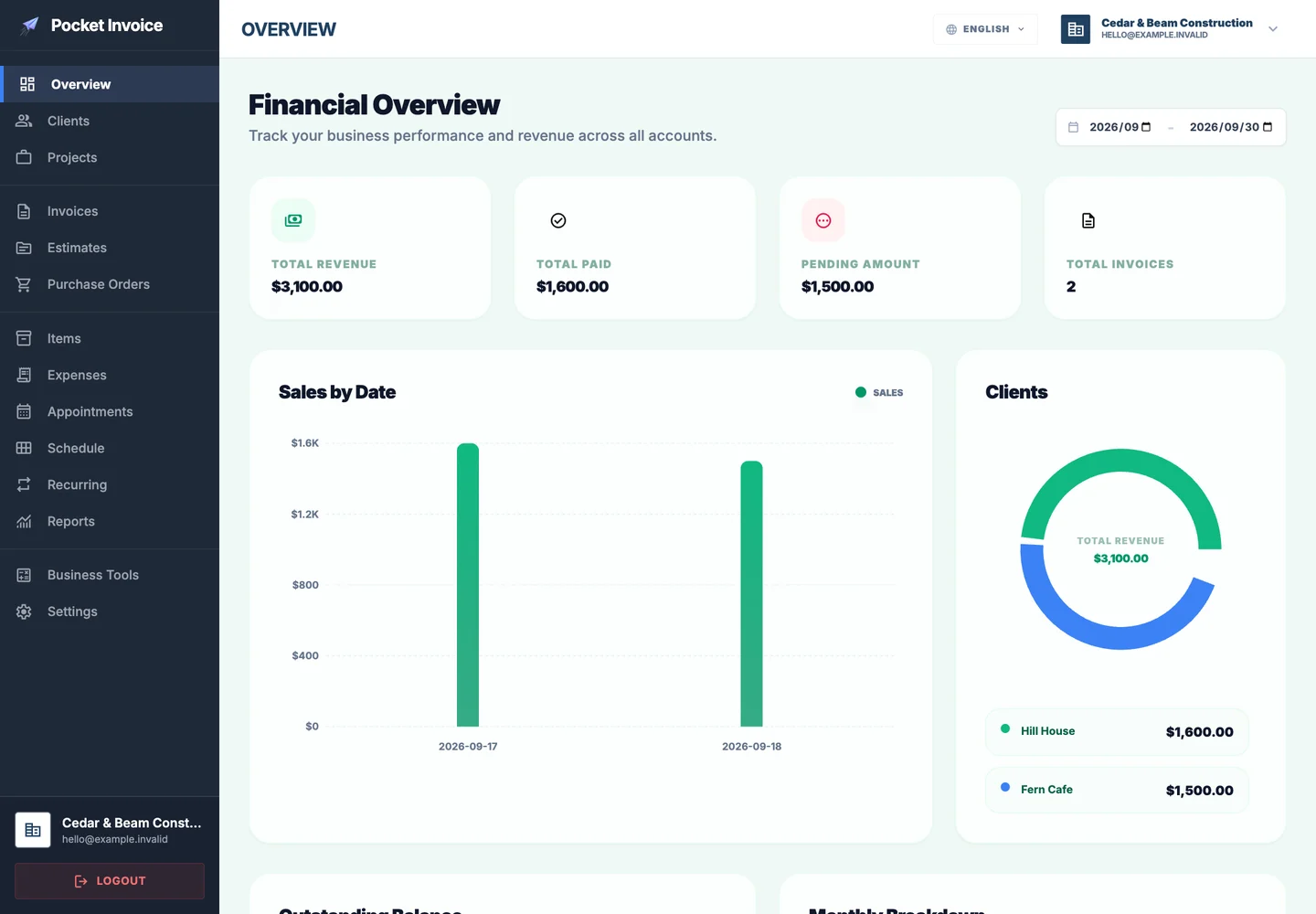
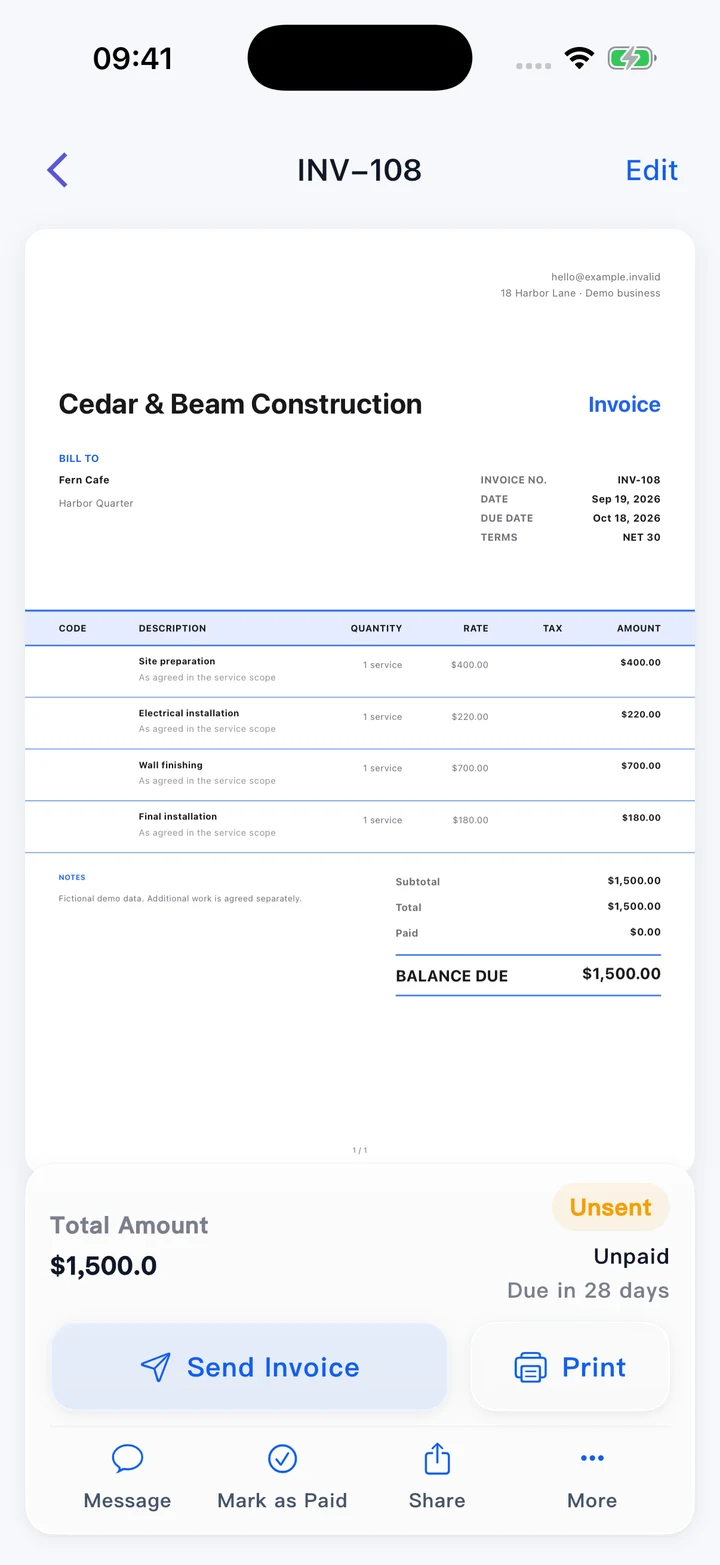
Use the Pocket Invoice app for customer, estimate, invoice and expense records. A PDF made on this free page is not saved to your account.
What to include in a quote
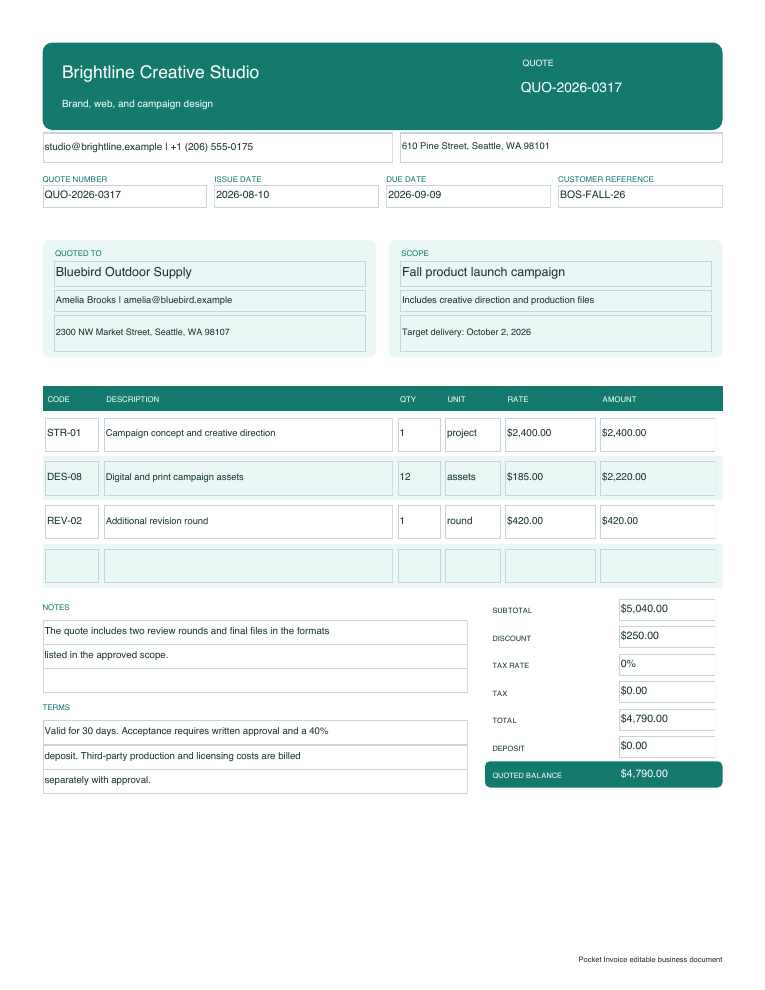
A quote sets out an offer for a defined job or purchase. The customer should be able to see the price, what it covers and the conditions for accepting it.
- 01
Business and customer
Include your contact details and the name of the customer receiving the offer. Add the project or site address when needed.
- 02
Quote number and date
Use a unique reference and issue date to distinguish this offer from earlier versions.
- 03
Work or products included
Describe the scope, quantities and unit prices. Name the products or tasks rather than using a general “services” line.
- 04
Final price and currency
Check discounts, tax and shipping charges, then review the amount you are offering in the agreed currency.
- 05
Validity and exclusions
Set an expiry date. State anything excluded from the price and how extra work or changes will be priced.
- 06
Acceptance and payment terms
Explain how the customer should confirm the offer and set out any deposit, payment stages or delivery conditions.
Choose a quote template
Enlarge the previews to compare quote layouts. Choose Use template when you are ready to enter your offer.
Browse templatesDownload a blank quote template
Use a blank Word, Excel or fillable PDF file to prepare your offer outside the editor. Excel includes formulas; totals in Word and the fillable PDF need to be checked manually.
Frequently asked questions
Can I create a quote without signing up?
Yes. Creating, previewing and downloading a quote PDF on this page is free and requires no account.
How is a quote different from an estimate?
A quote gives a price for a defined scope and stated conditions. An estimate gives an expected cost while some details may still change. State the basis of your offer clearly.
Can I download the quote in Word or Excel?
Your completed online quote downloads as a PDF. The Word, Excel and fillable PDF downloads are separate blank templates, not exports of your entered details.
Will this page remember my draft?
No. The form stays in this open page and is not saved as an account document. Download your PDF before leaving; use the Web app for saved records.
Can a customer accept the quote on this page?
This page creates the PDF; it does not collect signatures or online acceptance. Send the downloaded file yourself and keep the customer’s confirmation with the accepted quote.
How are my details used?
Your details are sent securely to our PDF service only when you preview or download. This tool does not save documents to an account.
Create another document
Create your quote
Set out the offer, check the price and download a quote your customer can review.