
Free estimate generator
Are you discussing a project cost for construction, repairs or services? Record the work you plan to do, the estimated labor and materials, if any. Specify quantities and unit prices. Calculate the total amounts. Insert your company logo, specify the terms of the estimate. Preview and download a PDF for your client.
- Automatic calculation of totals.
- Download PDF
The PDF service works with the details you specify to create the document. This tool will not store the document in your account.
How to make an estimate
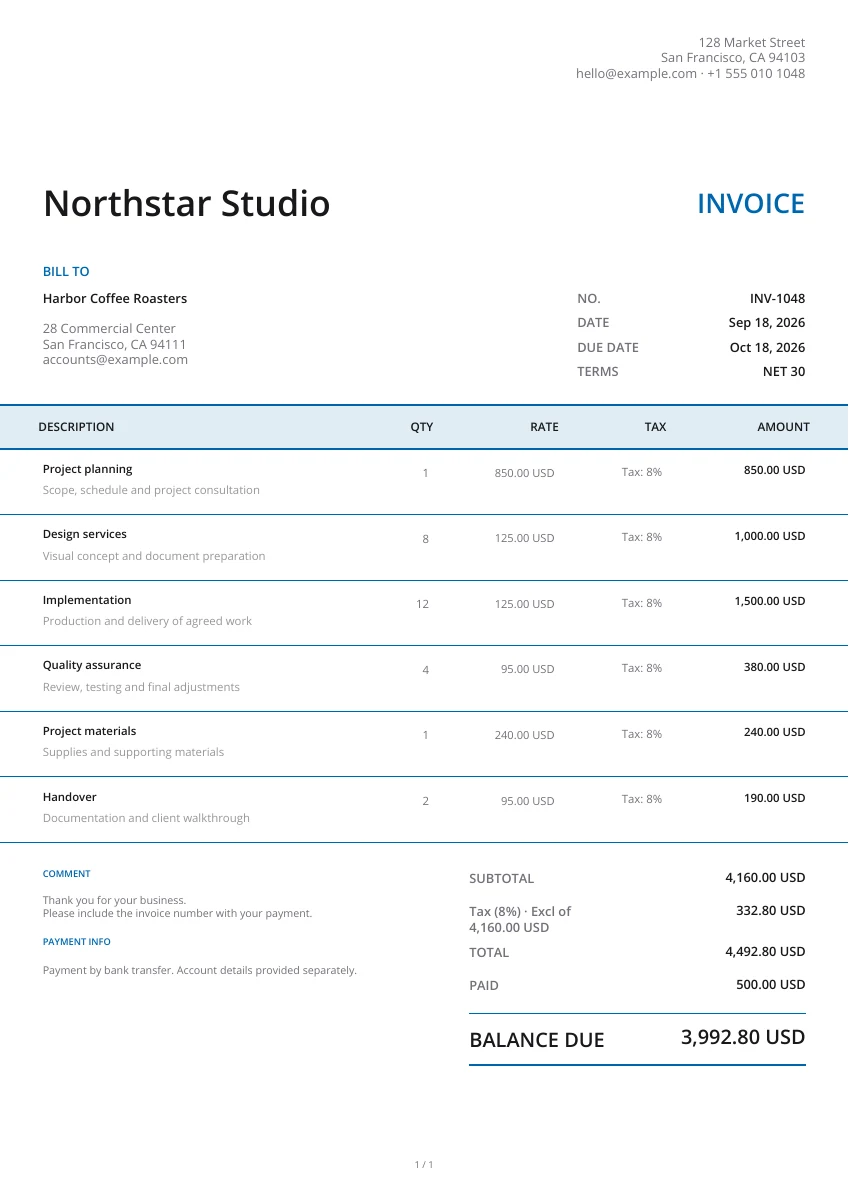
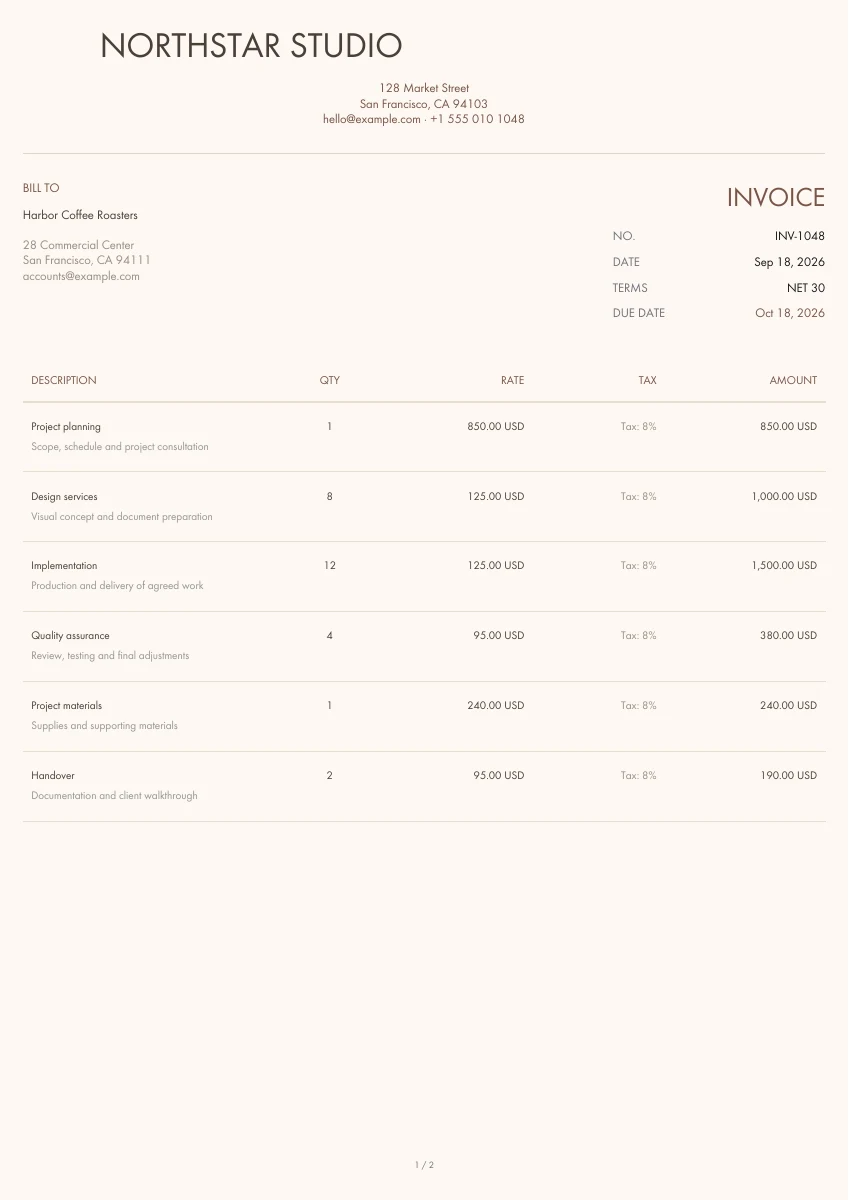
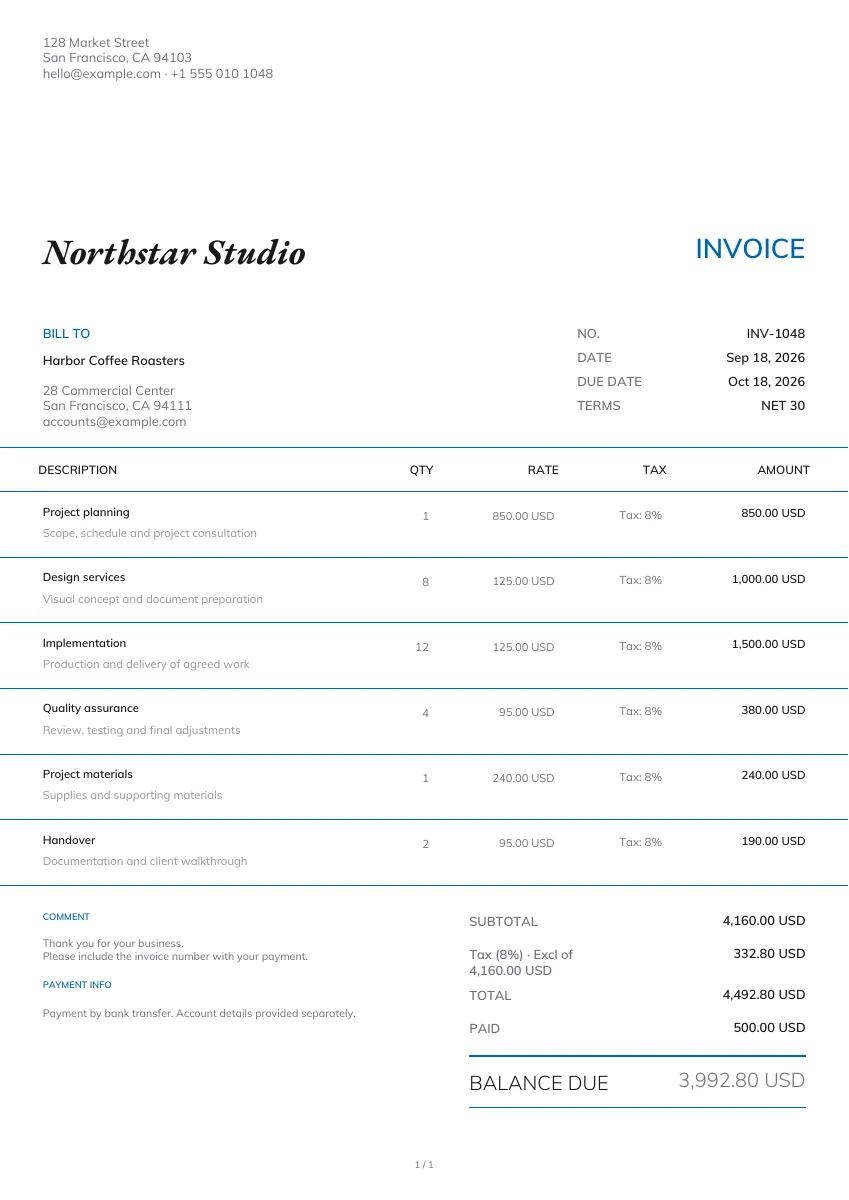
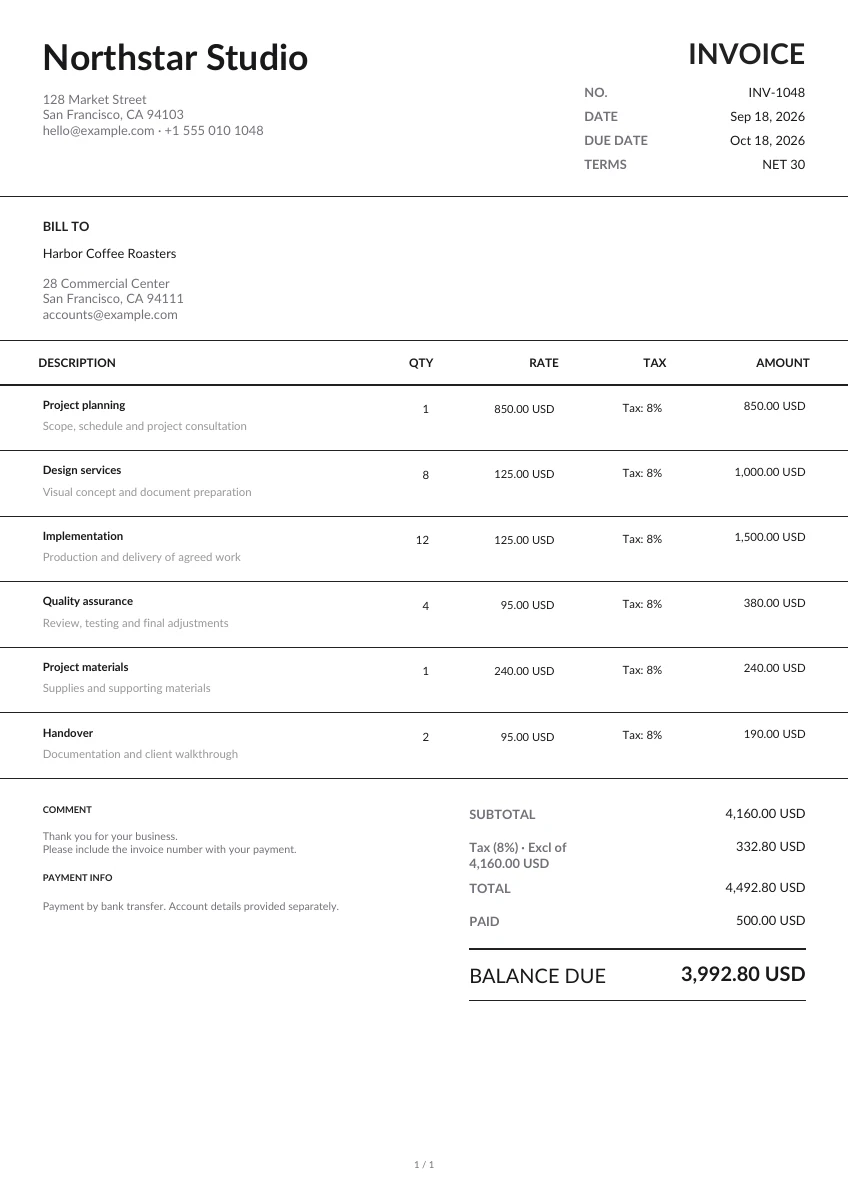
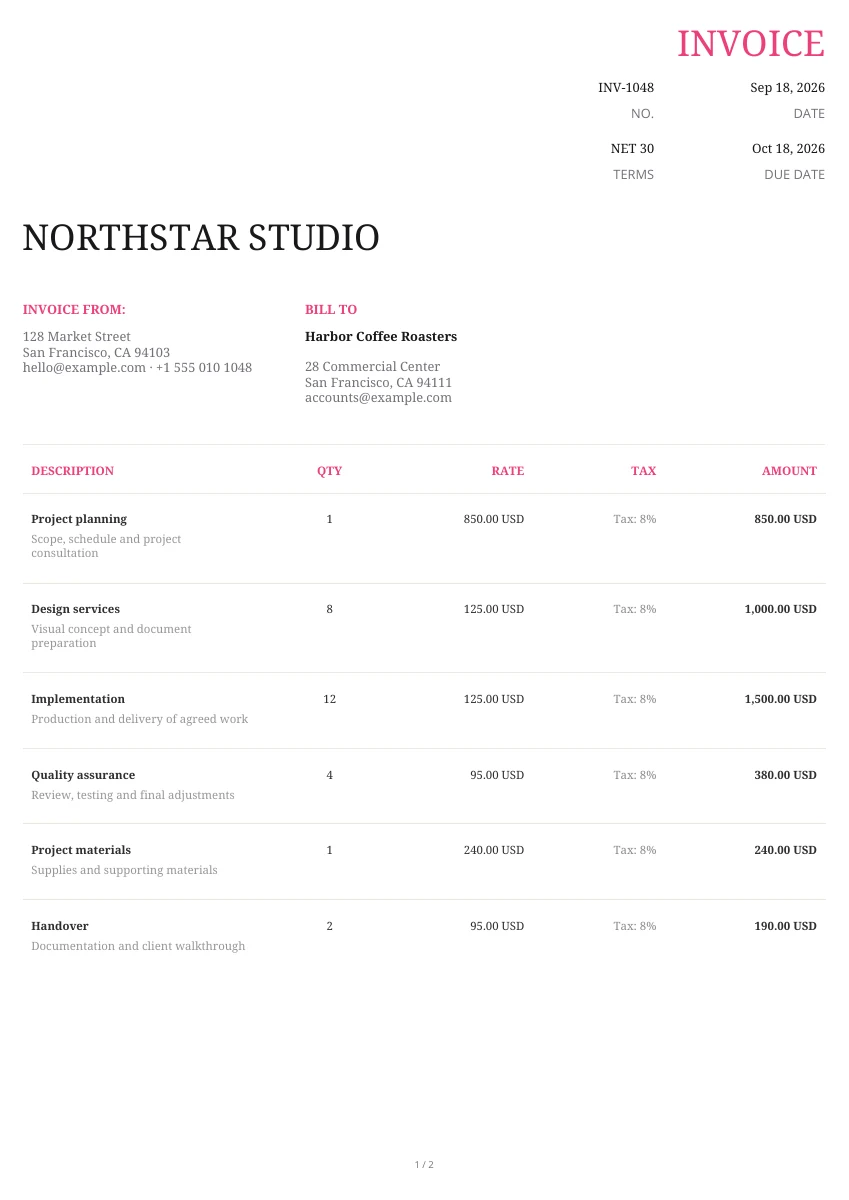
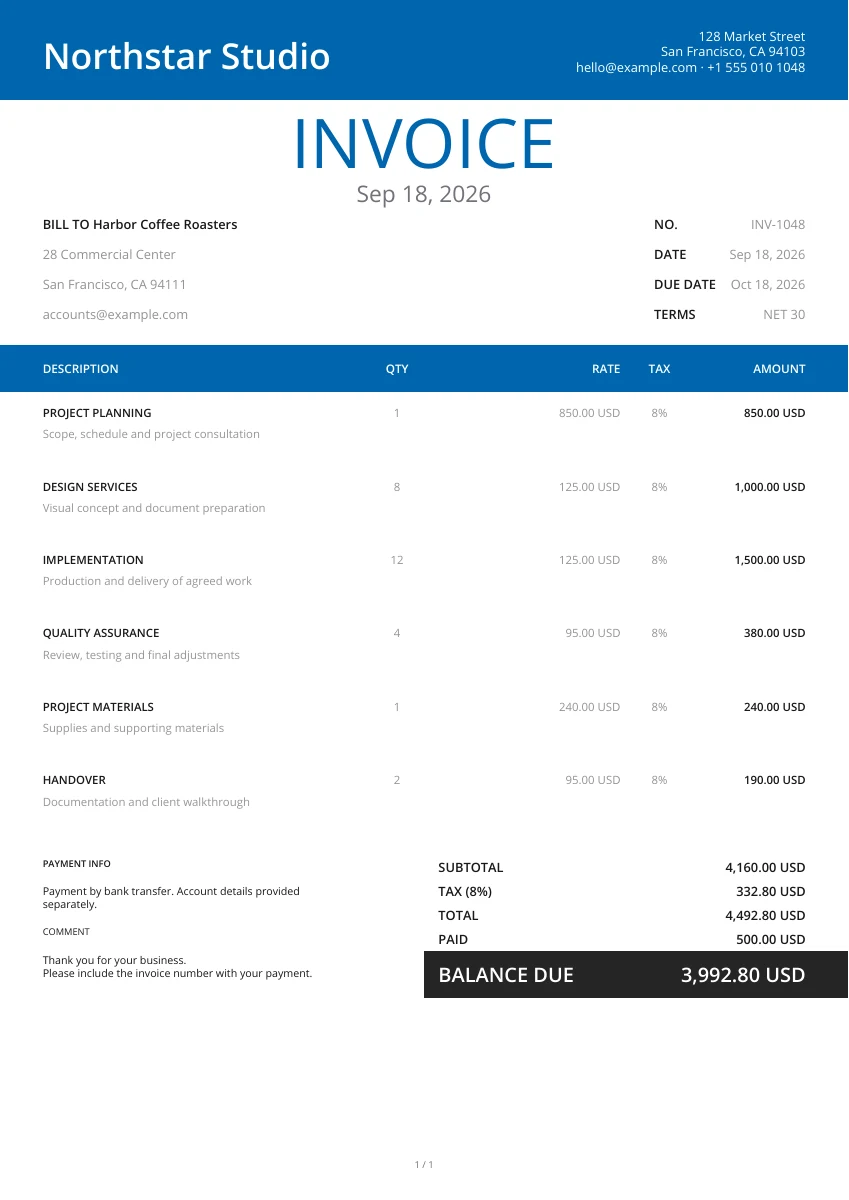
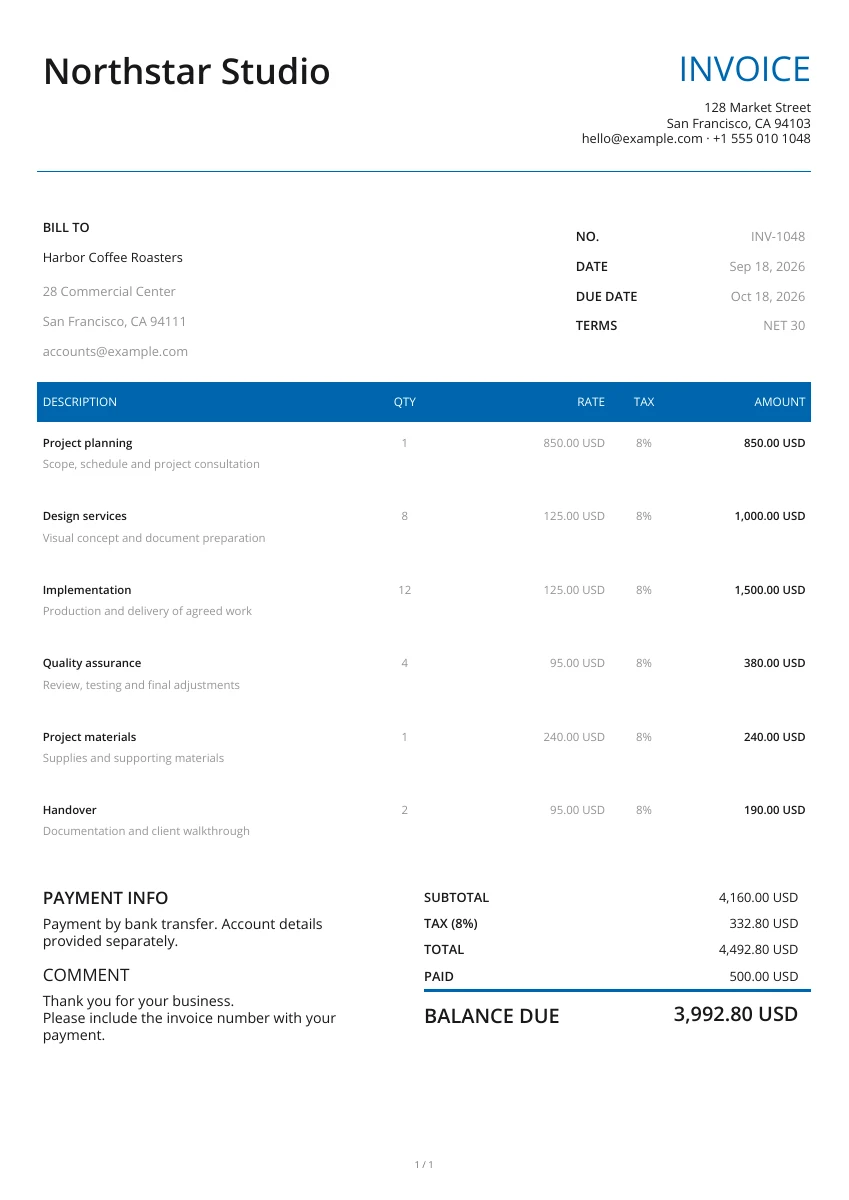
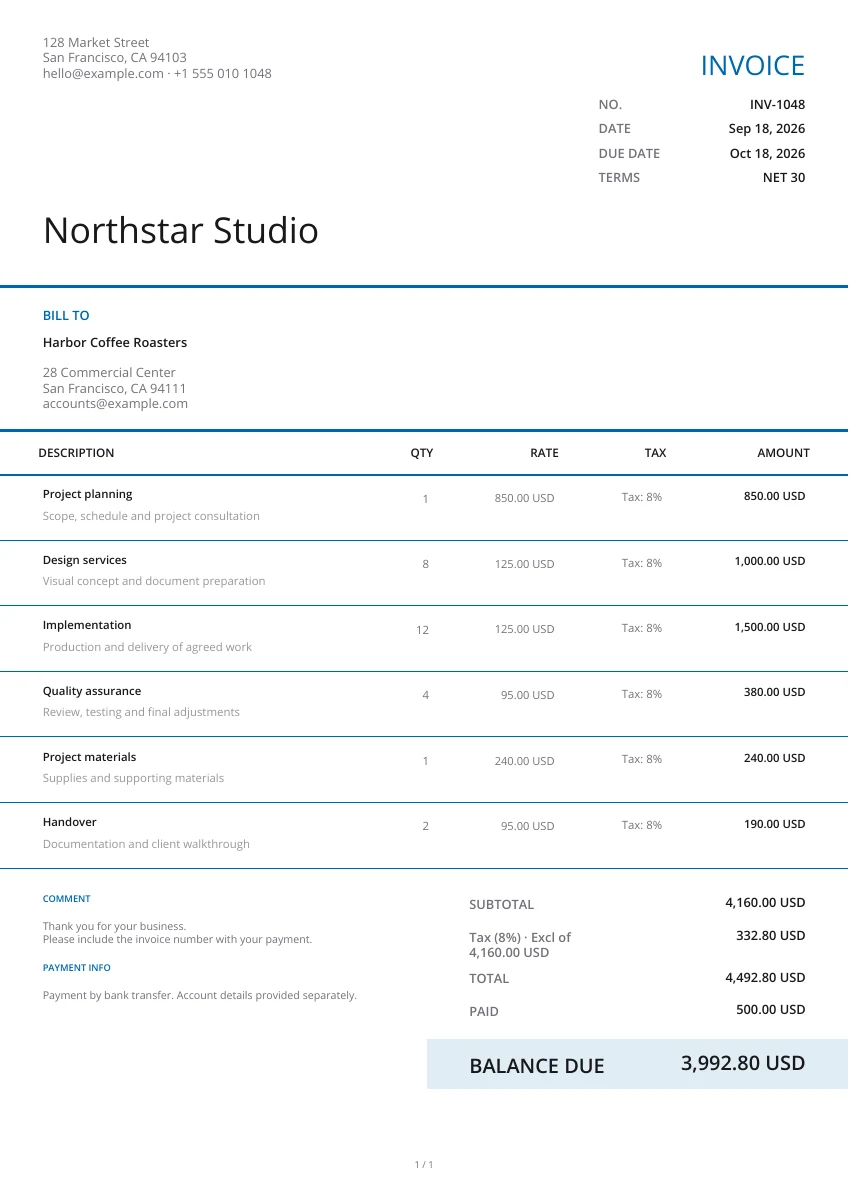
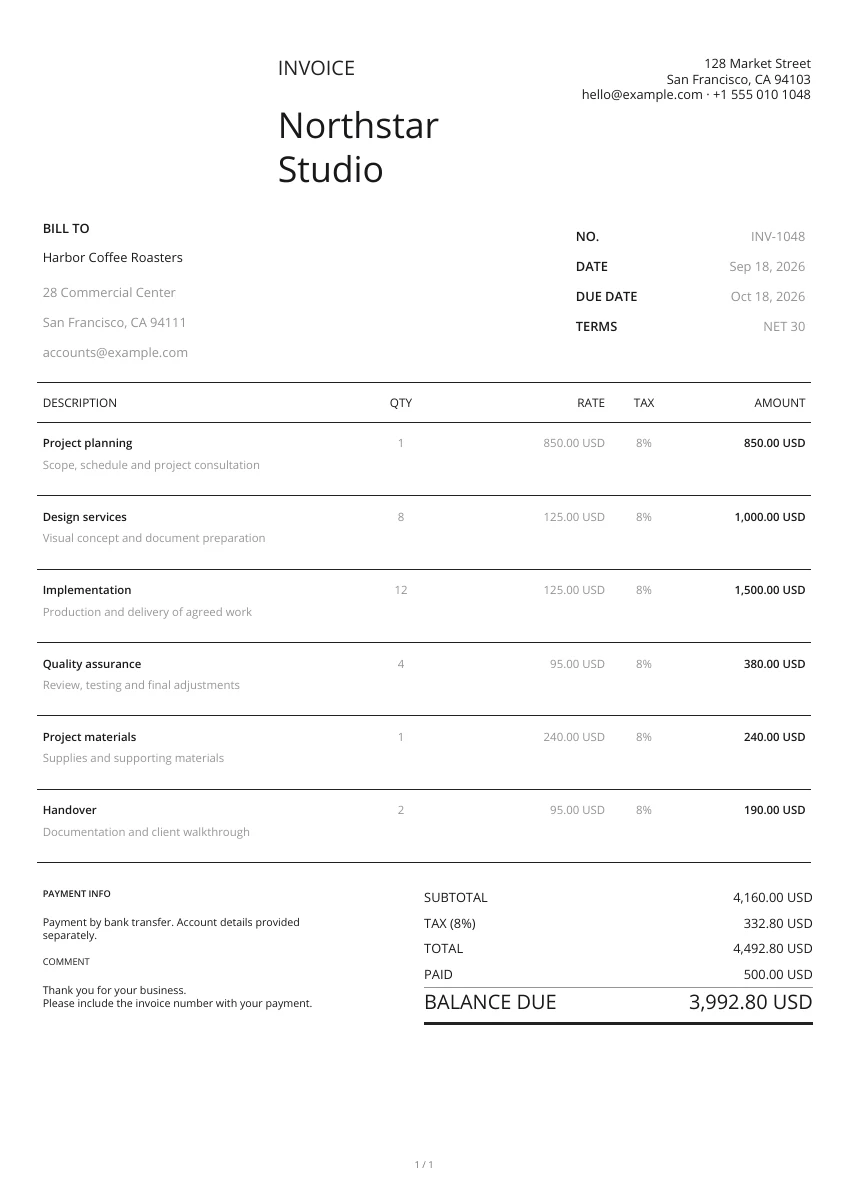
Select a template, header, colors. Insert your company logo. Specify the business and client details. Project address. Changing the layout keeps the details you specified in the current editor.
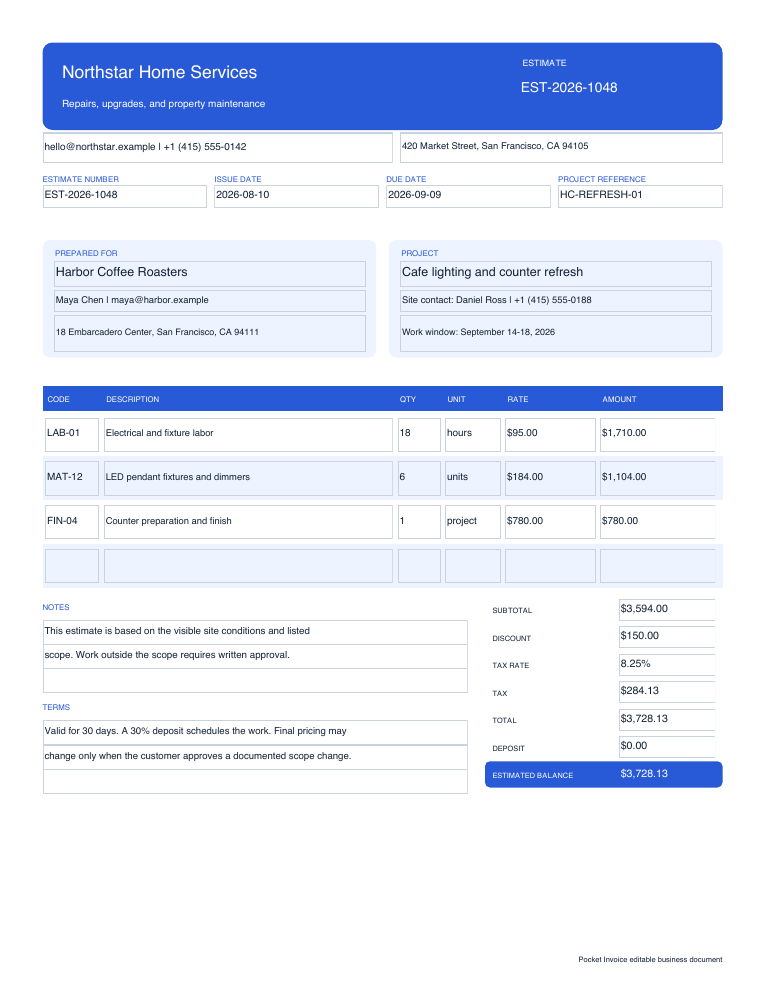
Describe labor, materials or other costs on separate lines. Specify the quantity and unit price. The tool will calculate the total amounts. Specify the assumptions, terms that you need to clarify. It's better to specify what is not included in the work than to total it all up.
Specify the validity and payment terms. Preview the entire PDF. Review the items, notes, total amount. Review the estimate. Download it. You can send the estimate yourself as an email attachment. Or you can print it and have your own copy.
Customise the estimate to your business needs
21 estimate layouts
Use one of 21 layouts. Adjust it to your business needs. Add brand colors and a header. Add your logo. Adjust its size in the design options. This way, the customer can see which business has created the estimate. You don't need to repeat information when changing the design inside the current editor.
Labor and materials
Include estimated labor hours, quantity of materials and individual unit prices. Don't forget to add negotiated discounts, taxes and shipping. What does it change for the estimate total? Group the expected expenses by project.
Site photos
Use the photos of your site to better describe your construction or repair work. You can attach images in the PDF. Make sure everything is accurate before sending. Images, items, notes, amounts. Do they match?
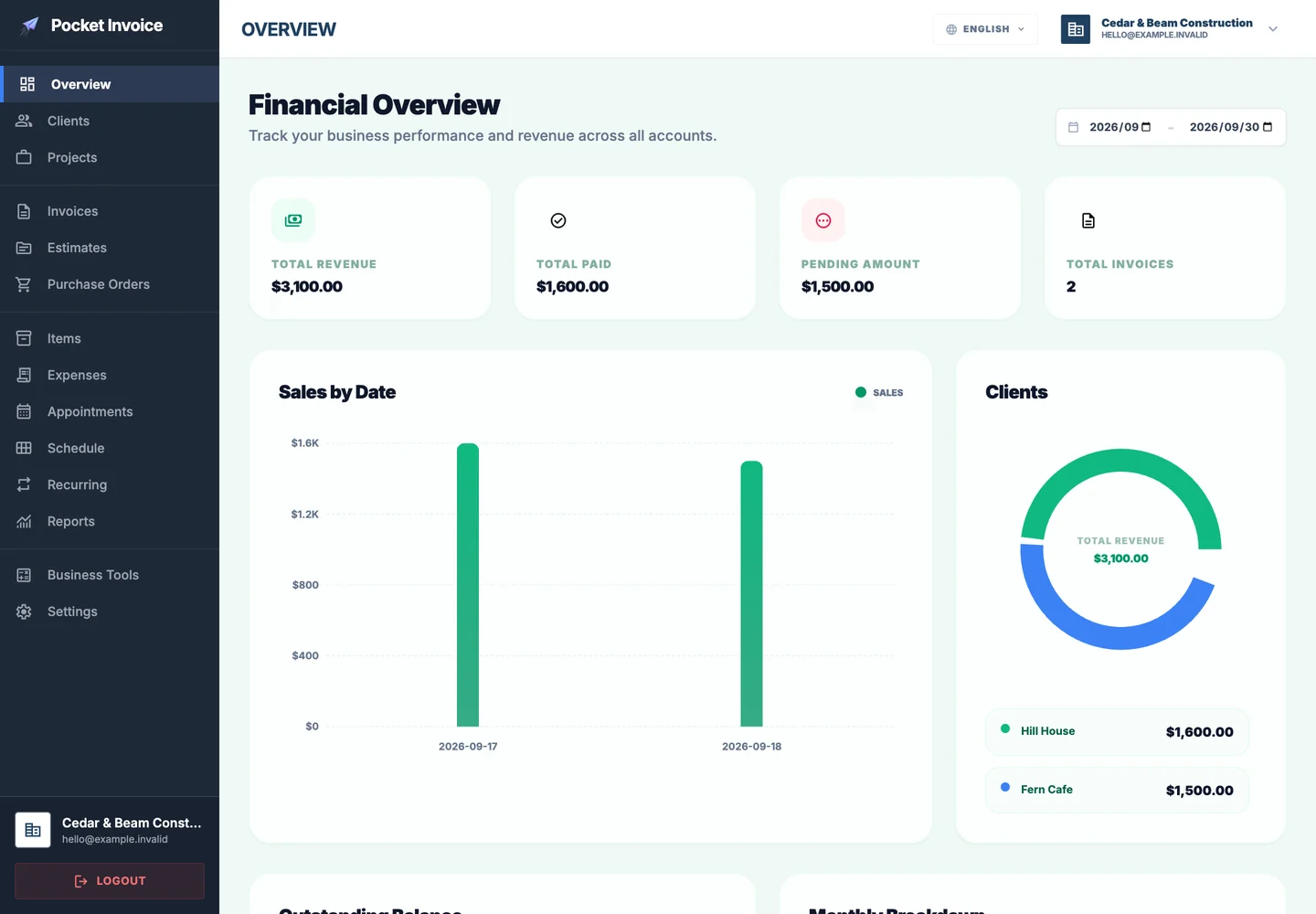
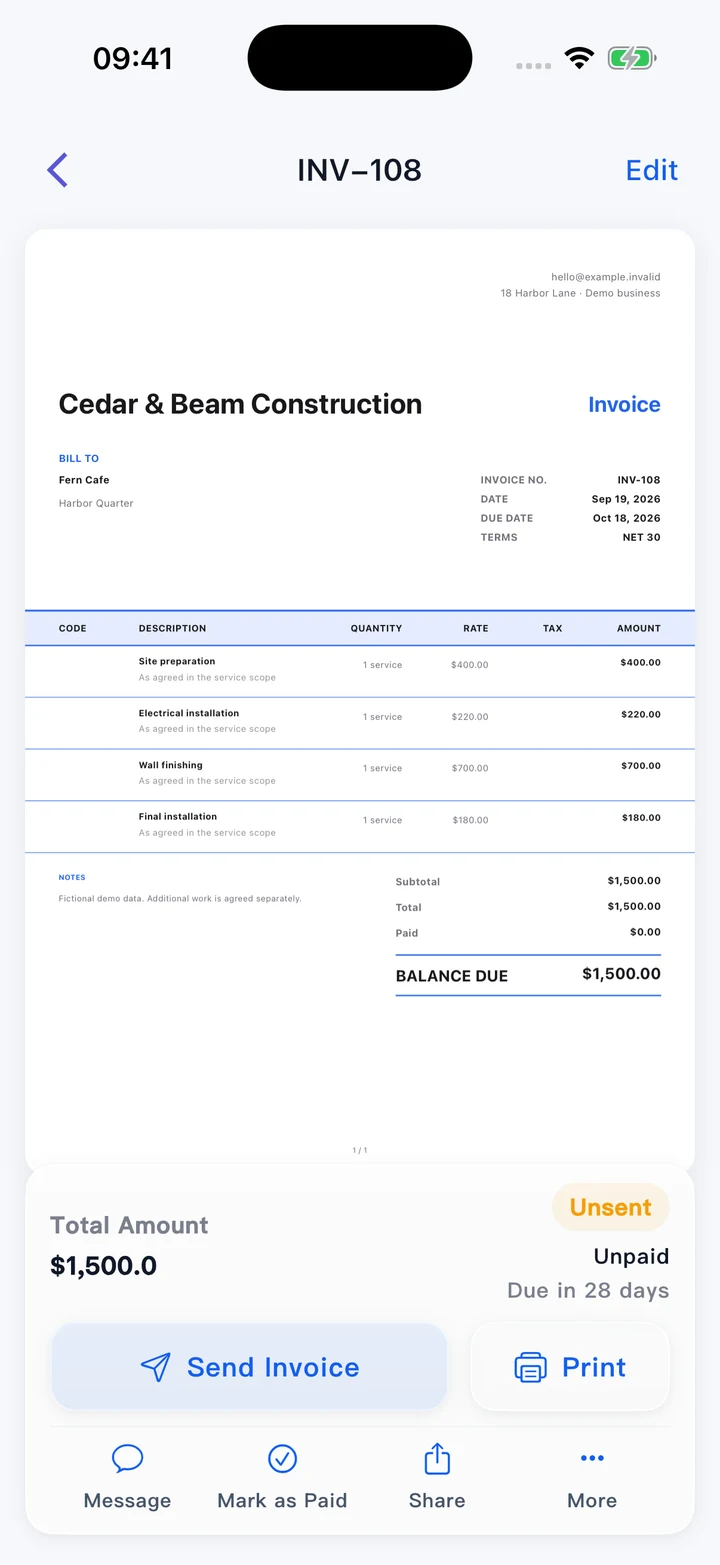
Manage the estimate and track your project
Either on your phone or on a computer.
Complete it directly in your browser. Download it before exiting the page. Send the PDF. Via your email or print for the customer. Store the customer approved version. You can later create a separate invoice with actual work done and agreed charges. Refer to the original estimate number.
Store your regular customers in the app.
If you often create estimates for the same customer, store their details in the Pocket Invoice app to reuse.
Manage your customers, estimates, invoices, expenses, business reports in the app.
All documents created using this free editor won't be automatically saved in your account. Use the app to create these records if you need to keep them for longer.
What should be listed in an estimate?
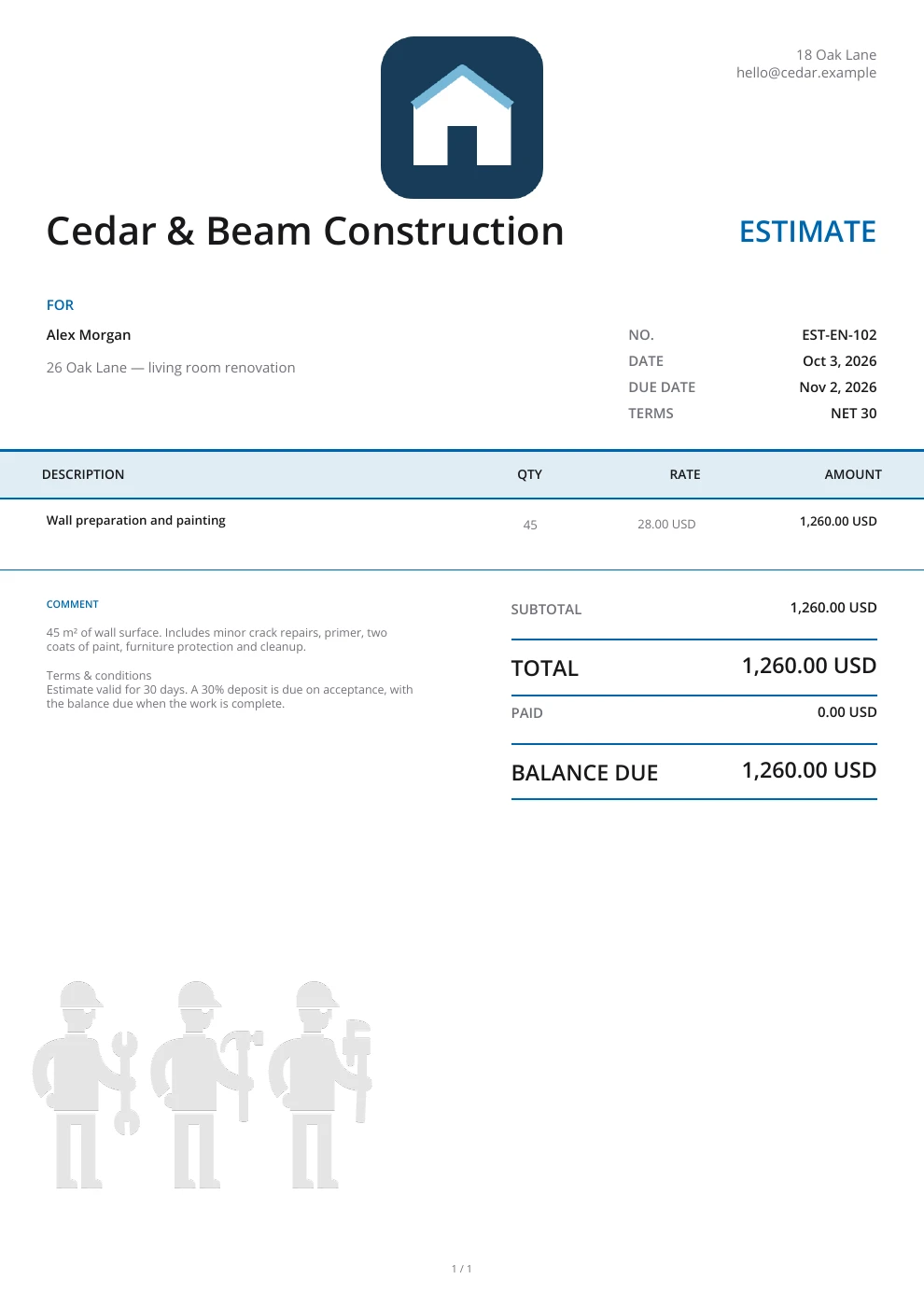
Who will provide the work? For whom? What costs are included? What's the estimated amount? Answer these questions in your estimate. In case the quantities are uncertain, specify on which basis the estimate is given, and what needs to be verified.
- 01
Title and company logo
Add a title and company logo. "Estimate" lets you indicate that it's a cost estimate that's given prior to the work. A company logo helps your customer to identify the company.
- 02
Number, issue date and validity
Give the estimate its own number. Enter the date of issue and date it's valid until. This way you'll be able to locate the appropriate estimate for future discussions, changes or invoicing.
- 03
Business, customer and project address
Add the name of the company and the customer. Specify the address and contact information. In case the work or delivery address is different from the customer's office, you can additionally enter the actual address of the project.
- 04
Scope of work
List the planned work. For example, wall patches or re-painting, cleaning. Add the location. Indicate the scope of the construction, repair or service work. Don't be too general - no "project costs".
- 05
Labor, materials, quantities and unit prices
Enter the estimated hours/visits for work, or the estimated quantity of materials, and the unit prices. Specify the unit (e.g. item, square meter, hours) either in the item name or additional description. If the quantities are uncertain, specify on which basis the quantity was estimated or measured.
- 06
Discounts, tax and shipping
Add all applicable discounts, tax and shipping. The amounts will be automatically modified by the tool. Verify the final agreement and taxation conditions.
- 07
Estimated total and currency
Specify the currency that was agreed upon with your customer. Verify the subtotal, adjustments and the total amount. This is an expected cost amount. It does not confirm payment by the customer.
- 08
Assumptions, scope changes and payment terms
Specify the assumptions and exclusions for this estimate (for example, hidden damage, removal work, additional visits). How will you be discussing any changes in price when quantities, materials or work site conditions change? Add any potential advance payment or installment terms.
Which estimate template to use?
Click the preview to see it in detail. To open the estimate editor with this template, click "Use template".
See all templatesEdit it with files!
Download editable Word or Excel templates or a fillable PDF, in English. You just need to change the example business/customer/items/values... Excel includes formulas. Calculate/verify amounts yourself in Word and the fillable PDF. These separate downloads don't contain details of the current web form.
Estimate questions
What's the online estimate process?
- Select a template
- Enter business/customer details
- List items to be estimated, estimated quantities, unit prices
- Specify validity, terms of payment, other notes
- View for final checks and then download PDF free.
What's the difference between an estimate and quote?
An estimate is the expectation of the cost based on the information on hand. Suitable to use when quantity/scope of work is not 100% clear. A quote provides prices and terms for a particular scope. Both should specify their terms and conditions and any possible changes.
What if I'm not sure of the material quantities?
Set the quantity as estimated. In the description specify the estimate, how it is measured, the quantities that need to be confirmed. In notes specify how the charges will vary based on the quantities.
Where can I specify the validity period for the estimate?
In Due / expiry date specify the valid until date. Provide details for the payment in the terms separately. Note that the payment term change will affect this date. Ensure that you check this before downloading. Avoid any confusion that the validity period is some other commitment of payment.
How can I issue an invoice after acceptance?
Just bill at the agreed amount for what you actually did. Use the invoice generator to create a new invoice and include the original estimate number. (Note that our free editor does not provide one-click conversion from an estimate to an invoice or online customer approval.)
Can I export to Word or Excel?
What you make here is a PDF. The downloadable Word, Excel and fillable PDF templates are English-only. You make these in your own editor. These are not conversions of what you entered here.
If I close this page does it save a draft version?
This page does not save a draft version to your account documents. Save/download the PDF before you exit. If you want to manage your customer and docs in the long-run, add docs to the app.
What do you do with my information for the PDF?
Your information on this page is used by the PDF service to generate your preview/download. We don't store the doc in your account with this tool.
Other document types
How to create an estimate
List tasks and costs. Review the estimate. Download the file. Talk to your customer about the estimate.